VB API Fundamentals:Controlling Creo Parametric
This section explains how to use the VB API to establish a connection to Creo Parametric.
Overview
Asynchronous mode is a multiprocess mode in which the VB API application and Creo Parametric can perform concurrent operations. The VB API application (containing its own main() method) is started independently of Creo Parametric and subsequently either starts or connects to a Creo Parametric process. Depending on how your asynchronous application handles messages from Creo Parametric, your application can be classified as either simple or full. The following sections describe simple and full asynchronous mode.
Simple Asynchronous Mode
A simple asynchronous application does not implement a way to handle requests from Creo Parametric. Therefore, the VB API cannot plant listeners to be notified when events happen in Creo Parametric. Consequently, Creo Parametric cannot invoke the methods that must be supplied when you add, for example, menu buttons to Creo Parametric.
Despite this limitation, a simple asynchronous mode application can be used to automate processes in Creo Parametric. The application may either start or connect to an existing Creo Parametric session, and may access Creo Parametric in interactive or in a non graphical, non interactive mode. When Creo Parametric is running with graphics, it is an interactive process available to the user.
When you design a VB API application to run in simple asynchronous mode, keep the following points in mind:
•  The Creo Parametric process and the application perform operations concurrently.
•  None of the application’s listener methods can be invoked by Creo Parametric.
Starting and Stopping Creo Parametric
The following methods are used to start and stop Creo Parametric when using the VB API applications.
Methods Introduced:
  • CCpfcAsyncConnection.Start()
  • IpfcAsyncConnection.End()
  • A VB application can spawn and connect to a Creo Parametric process with the method CCpfcAsyncConnection.Start().
    After this method returns the asynchronous connection object, the VB API application can call the Creo Parametric process using the appropriate APIs. In the interactive mode, you can also access the Creo Parametric session when it is running.
    The asynchronous application is not terminated when Creo Parametric terminates. This is useful when the application needs to perform Creo Parametric operations intermittently, and therefore, must start and stop Creo Parametric more than once during a session.
    The application can connect to or start only one Creo Parametric session at any time. If the VB API application spawns a second session, connection to the first session is lost.
    To end any Creo Parametric process that the application is connected to, call the method IpfcAsyncConnection.End().
    Setting Up a Noninteractive Session
    You can spawn a Creo Parametric session that is both noninteractive and nongraphical. In asynchronous mode, include the following strings in the Creo Parametric start or connect call to CCpfcAsyncConnection.Start():
    •  -g:no_graphics—Turn off the graphics display.
    •  -i:rpc_input—Causes Creo Parametric to expect input from your asynchronous application only.
    Note
    Both of these arguments are required, but the order is not important.
    The syntax of the call for a noninteractive, nongraphical session is as follows:
    Dim aC as IpfcAsyncConnection
    Dim ccAC as New CcpfcAsyncConnection
    aC = ccAC.Start ("pro -g:no_graphics -i:rpc_input",<text_dir>);
    where pro is the command to start Creo Parametric.
    Example Code for Visual Basic.NET
    The sample code in the file pfcAsynchronousModeExamples.vb located at <creo_vbapi_loadpoint>/vbapi_examples demonstrates how to use the VB API to start Creo Parametric asynchronously, retrieve a Session and to open a model in Creo Parametric.
    Example Code for Visual Basic for Applications
    This example demonstrates the VB API syntax in a macro written in Visual Basic for Applications, for example, as would be run by a button in a Microsoft Word document or Microsoft Excel spreadsheet. This example is identical to the previous example, except for the syntax.
    Private Sub btnRun_Click()
        Dim asyncConnection As IpfcAsyncConnection
        Dim cAC As CCpfcAsyncConnection
        Dim session As IpfcBaseSession
        Dim descModel As IpfcModelDescriptor
        Dim descModelCreate As CCpfcModelDescriptor
        Dim model As IpfcModel
        Dim workDir As String
        Dim position As Integer
        On Error GoTo RunError
    '======================================================================
    First Argument : The path to the Creo Parametric executable along with command
    line options. -i and -g flags make Creo Parametric run in non-graphic,
    'non-interactive mode
    'Second Argument: String path to menu and message files.   
    '======================================================================
        Set cAC = New CCpfcAsyncConnection
        Set asyncConnection = cAC.Start(txtExePath.Text + " -g:no_graphics
            -i:rpc_input", ".")
        Set session = asyncConnection.session
    '======================================================================
    'Get current directory
    'Set it as working directory
    '======================================================================
        workDir = ActiveWorkbook.FullName
        position = InStrRev(workDir, "\")
        workDir = Left(workDir, position)
        
        session.ChangeDirectory (workDir)
    '======================================================================
    'VB api process calls and other processing to be done   
    '======================================================================
        Set descModelCreate = New CCpfcModelDescriptor
        Set descModel = descModelCreate.Create(EpfcModelType.EpfcMDL_PART,
                        "partModel.prt", dbnull)
        Set model = session.RetrieveModel(descModel)
    '======================================================================
    End the Creo Parametric session when done   
    '======================================================================
        If Not asyncConnection Is Nothing Then
            If asyncConnection.IsRunning Then
                asyncConnection.End
            End If
        End If
        
    RunError:
    If Err.Number <> 0 Then
        MsgBox "Process Failed : Unknown error occured." + Chr(13) + _
                "Error No: " + CStr(Err.Number) + Chr(13) + _
                "Error: " + Err.Description, vbCritical, "Error"
                
        If Not asyncConnection Is Nothing Then
            If asyncConnection.IsRunning Then
                asyncConnection.End
            End If
        End If
    End If
            
    End Sub
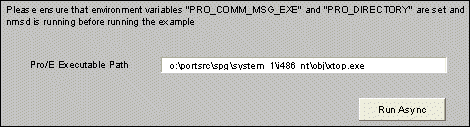
    The following figure displays the button in Microsoft Excel designed for the above application.
    Image
    Connecting to a Creo Parametric Process
    Methods Introduced:
  • CCpfcAsyncConnection.Connect()
  • CCpfcAsyncConnection.GetActiveConnection()
  • IpfcAsyncConnection.Disconnect()
  • A simple asynchronous application can also connect to a Creo Parametric process that is already running on a local computer. The method CCpfcAsyncConnection.Connect() performs this connection. This method fails to connect if multiple Creo Parametric sessions are running. If several versions of Creo Parametric are running on the same computer, try to connect by specifying user and display parameters. However, if several versions of Creo Parametric are running in the same user and display parameters, the connection may not be possible.
    CCpfcAsyncConnection.GetActiveConnection() returns the current connection to a Creo Parametric session.
    To disconnect from a Creo Parametric process, call the method IpfcAsyncConnection.Disconnect().
    Connecting Via Connection ID
    Methods Introduced:
  • IpfcAsyncConnection.GetConnectionId()
  • IpfcConnectionId.ExternalRep
  • CCpfcConnectionId.Create()
  • IpfcAsyncConnection.ConnectById()
  • Each Creo Parametric process maintains a unique identity for communications purposes. Use this ID to reconnect to a Creo Parametric process.
    The method IpfcAsyncConnection.GetConnectionId() returns a data structure containing the connection ID.
    If the connection id must be passed to some other application the method IpfcConnectionId.ExternalRep provides the string external representation for the connection ID.
    The method CCpfcConnectionId.Create() takes a string representation and creates a ConnectionId data object. The method IpfcAsyncConnection.ConnectById() connects to Creo Parametric at the specified connection ID.
    Note
    Connection IDs are unique for each Creo Parametric process and are not maintained after you quit Creo Parametric.
    Status of a Creo Parametric Process
    Method Introduced:
  • IpfcAsyncConnection.IsRunning()
  • To find out whether a Creo Parametric process is running, use the method IpfcpfcAsyncConnection.IsRunning().
    Getting the Session Object
    Method Introduced:
  • IpfcAsyncConnection.Session()
  • The method IpfcAsyncConnection.Session() returns the session object representing the Creo Parametric session. Use this object to access the contents of the Creo Parametric session. See the Session Objects section for additional information.
    Full Asynchronous Mode
    Full asynchronous mode is identical to the simple asynchronous mode except in the way the VB API application handles requests from Creo Parametric. In simple asynchronous mode, it is not possible to process these requests. In full asynchronous mode, the application implements a control loop that ‘‘listens’’ for messages from Creo Parametric. As a result, Creo Parametric can call functions in the application, including callback functions for menu buttons and notifications.
    Note
    Using full asynchronous mode requires starting or connecting to Creo Parametric using the methods described in the previous sections. The difference is that the application must provide an event loop to process calls from menu buttons and listeners.
    Methods Introduced:
  • IpfcAsyncConnection.EventProcess()
  • IpfcAsyncConnection.WaitForEvents()
  • IpfcAsyncConnection.InterruptEventProcessing()
  • IpfcAsyncActionListener.OnTerminate()
  • The control loop of an application running in full asynchronous mode must contain a call to the method IpfcAsyncConnection.EventProcess(), which takes no arguments. This method allows the application to respond to messages sent from Creo Parametric. For example, if the user selects a menu button that is added by your application, IpfcAsyncConnection.EventProcess() processes the call to your listener and returns when the call completes. For more information on listeners and adding menu buttons, see the Session Objects section.
    The method IpfcAsyncConnection.WaitForEvents() provides an alternative to the development of an event processing loop in a full asynchronous mode application. Call this function to have the application wait in a loop for events to be passed from Creo Parametric. No other processing takes place while the application is waiting. The loop continues until IpfcAsyncConnection.InterruptEventProcessing() is called from a VB callback action, or until the application detects the termination of Creo Parametric.
    It is often necessary for your full asynchronous application to be notified of the termination of the Creo Parametric process. In particular, your control loop need not continue to listen for Creo Parametric messages if Creo Parametric is no longer running.
    An AsyncConnection object can be assigned an Action Listener to bind a termination action that is executed upon the termination of Creo Parametric. The method IpfcAsyncActionListener.OnTerminate() handles the termination that you must override. It sends a member of the class IpfcTerminationStatus, which is one of the following:
    •  EpfcTERM_EXIT—Normal exit (the user clicks Exit on the menu).
    •  EpfcTERM_ABNORMAL—Quit with error status.
    •  EpfcTERM_SIGNAL—Fatal signal raised.
    Your application can interpret the termination type and take appropriate action. For more information on Action Listeners, see the Action Listeners section.
    Example Code
    The sample code in the file pfcAsynchronousModeExamples.vb located at <creo_vbapi_loadpoint>/vbapi_examples is a fully asynchronous application. It follows the procedure for a full asynchronous application:
    1. The application establishes listeners for Creo Parametric events, in this case, the menu button and the termination listener.
    2. The application goes into a control loop calling EventProcess which allows the application to respond to the Creo Parametric events.
    Message and Menu File
    #
    #
    VB-Async
    VB-Async
    #
    #
    USER#Async#App
    Async Button
    #
    #
    USER#Async#Help
    Button added via Async Application 
    #
    #
    Troubleshooting VB API Applications
    General Problems
    IpfcXToolkitNotFound exception on the first call to CCpfcAsyncConnection.Start on Windows
    Make sure your command is correct. If it is not a full path to a script or executable, make sure $PATH is set correctly. Try full path in the command: if it works, then your $PATH is incorrect.
    IpfcXToolkitGeneralError or IpfcXToolkitCommError on the first call to CCpfcAsyncConnection.Start or CCpfcAsyncConnection.Connect
    •  Make sure the environment variable PRO_COMM_MSG_EXE is set to the full path to pro_comm_msg, including <filename.exe>.
    •  Make sure the environment variable PRO_DIRECTORY is set to the Creo Parametric installation directory.
    •  Make sure name service (nmsd) is running.
    CCpfcAsyncConnection.Start hangs, even though Creo Parametric already started
    Make sure name service (nmsd) is also started along with Creo Parametric. Open Task Manager and look for nmsd.exe in the process listing.