Models
This section describes how to program on the model level using the VB API.
Overview of Model Objects
Models can be any Creo Parametric file type, including parts, assemblies, drawings, sections, and notebook. The classes in the modulepfcModel provide generic access to models, regardless of their type. The available methods enable you to do the following:
•  Access information about a model.
•  Open, copy, rename, and save a model.
Getting a Model Object
Methods and Properties Introduced:
  • IpfcFamilyTableRow.CreateInstance()
  • IpfcSelection.SelModel
  • IpfcBaseSession.GetModel()
  • IpfcBaseSession.CurrentModel
  • IpfcBaseSession.GetActiveModel()
  • IpfcBaseSession.ListModels()
  • IpfcBaseSession.GetByRelationId()
  • IpfcWindow.Model
  • These methods get a model object that is already in session.
    The property IpfcSelection.SelModel returns the model that was interactively selected.
    The method IpfcBaseSession.GetModel() returns a model based on its name and type, whereas IpfcBaseSession.GetByRelationId() returns a model in an assembly that has the specified integer identifier.
    The property IpfcBaseSession.CurrentModel returns the current active model.
    The method IpfcBaseSession.GetActiveModel() returns the active Creo Parametric model.
    Use the method IpfcBaseSession.ListModels() to return a sequence of all the models in session.
    For more methods that return solid models, refer to the section Solid.
    Model Descriptors
    Methods and Properties Introduced:
  • CCpfcModelDescriptor.Create()
  • IpfcModelDescriptor_CreateFromFileName()
  • IpfcModelDescriptor.SetGenericName
  • IpfcModelDescriptor.SetInstanceName
  • IpfcModelDescriptor.SetType
  • IpfcModelDescriptor.SetDevice
  • IpfcModelDescriptor.SetPath
  • IpfcModelDescriptor.FileVersion
  • IpfcModelDescriptor.GetFullName
  • IpfcModel.GetFullName
  • Model descriptors are data objects used to describe a model file and its location in the system. The methods in the model descriptor enable you to set specific information that enables Creo Parametric to find the specific model you want.
    The static utility method CCpfcModelDescriptor.Create() allows you to specify as data to be entered a model type, an instance name, and a generic name. The model descriptor constructs the full name of the model as a string, as follows:
    String FullName = InstanceName+"<"+GenericName+">"; 
                                        // As long as the
                                        // generic name is
                                        // not an empty 
                                        // string ("")
    If you want to load a model that is not a family table instance, pass an empty string as the generic name argument so that the full name of the model is constructed correctly. If the model is a family table interface, you should specify both the instance and generic names.
    Note
    You are allowed to set other fields in the model descriptor object, but they may be ignored by some methods.
    The static utility method IpfcModelDescriptor.CreateFromFileName() allows you to create a new model descriptor from a given a file name. The file name is a string in the form <name>.<extension>.
    Retrieving Models
    Methods Introduced:
  • IpfcBaseSession.RetrieveModel()
  • IpfcBaseSession.RetrieveModelWithOpts()
  • IpfcBaseSession.OpenFile()
  • IpfcSolid.HasRetrievalErrors()
  • These methods cause Creo Parametric to retrieve the model that corresponds to the IpfcModelDescriptor argument.
    The method IpfcBaseSession.RetrieveModel() retrieves the specified model into the Creo Parametric session given its model descriptor from a standard directory. This method ignores the path argument specified in the model descriptor. But this method does not create a window for it, nor does it display the model anywhere.
    The method IpfcBaseSession.RetrieveModelWithOpts() retrieves the specified model into the Creo Parametric session based on the path specified by the model descriptor. The path can be a disk path, a workspace path, or a commonspace path. The Opts argument (given by the IpfcRetrieveModelOptions object) provides the user with the option to specify simplified representations.
    The method IpfcBaseSession.OpenFile() brings the model into memory, opens a new window for it (or uses the base window, if it is empty), and displays the model.
    Note
    IpfcBaseSession.OpenFile() actually returns a handle to the window it has created.
    The file version set by the IpfcModelDescriptor.FileVersion property is ignored by the IpfcBaseSession.RetrieveModelWithOpts() and IpfcBaseSession.OpenFile() methods. Instead, the latest file version of the model is used by these two methods.
    To get a handle to the model you need, use the property IpfcWindow.Model.
    The method IpfcSolid.HasRetrievalErrors() returns a true value if the features in the solid model were suppressed during the RetrieveModel or OpenFile operations. This method must be called immediately after the IpfcBaseSession.RetrieveModel() method or an equivalent retrieval method.
    Example Code: Retrieving a Model
    The sample code in the file pfcModelsExamples.vb located at <creo_vbapi_loadpoint>/vbapi_examples demonstrates how to retrieve a model.
    Model Information
    Methods and Properties Introduced:
  • IpfcModel.FileName
  • IpfcModel.CommonName
  • IpfcModel.IsCommonNameModifiable()
  • IpfcModel.FullName
  • IpfcModel.GenericName
  • IpfcModel.InstanceName
  • IpfcModel.Origin
  • IpfcModel.RelationId
  • IpfcModel.Descr
  • IpfcModel.Type
  • IpfcModel.IsModified
  • IpfcModel.Version
  • IpfcModel.Revision
  • IpfcModel.Branch
  • IpfcModel.ReleaseLevel
  • IpfcModel.VersionStamp
  • IpfcModel.ListDependencies()
  • IpfcModel.CleanupDependencies()
  • IpfcModel.ListDeclaredModels()
  • IpfcModel.CheckIsModifiable()
  • IpfcModel.CheckIsSaveAllowed()
  • The property IpfcModel.FileName retrieves the model file name in the "name"."type" format.
    The property IpfcModel.CommonName retrieves the common name for the model. This name is displayed for the model in Windchill PDMLink.
    Use the method IpfcModel.IsCommonNameModifiable() to identify if the common name of the model can be modified. You can modify the name for models that are not yet owned by Windchill PDMLink, or in certain situations if the configuration option let_proe_rename_pdm_objects is set to yes.
    The property IpfcModel.FullName retrieves the full name of the model in the instance <generic> format.
    The property IpfcModel.GenericName retrieves the name of the generic model. If the model is not an instance, this name must be NULL or an empty string.
    The property IpfcModel.InstanceName retrieves the name of the model. If the model is an instance, this method retrieves the instance name.
    The property IpfcModel.Origin returns the complete path to the file from which the model was opened. This path can be a location on disk from a Windchill workspace, or from a downloaded URL.
    The property IpfcModel.RelationId retrieves the relation identifier of the specified model. It can be NULL.
    The property IpfcModel.Descr returns the descriptor for the specified model. Model descriptors can be used to represent models not currently in session.
    Note
    From Pro/ENGINEER Wildfire 4.0 onwards, the properties IpfcModel.FullName, IpfcModel.GenericName, and IpfcModel.Descr throw an exception IpfcXtoolkitCantOpen if called on a model instance whose immediate generic is not in session. Handle this exception and typecast the model as IpfcSolid, which in turn can be typecast as IpfcFamilyMember, and use the method IpfcFamilyMember.GetImmediateGenericInfo() to get the model descriptor of the immediate generic model. The model descriptor can be used to derive the full name or generic name of the model. If you wish to switch off this behavior and continue to run legacy applications in the pre-Wildfire 4.0 mode, set the configuration option retrieve_instance_dependencies to instance_and_generic_deps.
    The property IpfcModel.Type returns the type of model in the form of the IpfcModelType object. The types of models are as follows:
    •  EpfcMDL_ASSEMBLY—Specifies an assembly.
    •  EpfcMDL_PART—Specifies a part.
    •  EpfcMDL_DRAWING—Specifies a drawing.
    •  EpfcMDL_2D_SECTION—Specifies a 2D section.
    •  EpfcMDL_LAYOUT—Specifies a notebook.
    •  EpfcMDL_DWG_FORMAT—Specifies a drawing format.
    •  EpfcMDL_MFG—Specifies a manufacturing model.
    •  EpfcMDL_REPORT—Specifies a report.
    •  EpfcMDL_MARKUP—Specifies a drawing markup.
    •  EpfcMDL_DIAGRAM—Specifies a diagram
    •  EpfcMDL_CE_SOLID—Specifies a Layout model.
    Note
    the VB API methods will only be able to read models of type Layout, but will not be able to pass Layout models as input to other methods. PTC recommends that you review all the VB API applications that use the object IpfcModelType and modify the code as appropriate to ensure that the applications work correctly.
    The property IpfcModel.IsModified identifies whether the model has been modified since it was last saved.
    The property IpfcModel.Version returns the version of the specified model from the PDM system. It can be NULL, if not set.
    The property IpfcModel.Revision returns the revision number of the specified model from the PDM system. It can be NULL, if not set.
    The property IpfcModel.Branch returns the branch of the specified model from the PDM system. It can be NULL, if not set.
    The property IpfcModel.ReleaseLevel returns the release level of the specified model from the PDM system. It can be NULL, if not set.
    The property IpfcModel.VersionStamp returns the version stamp of the specified model. The version stamp is a Creo Parametric specific identifier that changes with each change made to the model.
    The method IpfcModel.ListDependencies() returns a list of the first-level dependencies for the specified model in the Creo Parametric workspace in the form of the IpfcDependencies object.
    Use the method IpfcModel.CleanupDependencies() to clean the dependencies for an object in the Creo Parametric workspace.
    Note
    Do not call the method IpfcModel.CleanupDependencies() during operations that alter the dependencies, such as, restructuring components and creating or redefining features.
    The method IpfcModel.ListDeclaredModels() returns a list of all the first-level objects declared for the specified model.
    The method IpfcModel.CheckIsModifiable() identifies if a given model can be modified without checking for any subordinate models. This method takes a boolean argument ShowUI that determines whether the Creo Parametric conflict resolution dialog box should be displayed to resolve conflicts, if detected. If this argument is false, then the conflict resolution dialog box is not displayed, and the model can be modified only if there are no conflicts that cannot be overridden, or are resolved by default resolution actions. For a generic model, if ShowUI is true, then all instances of the model are also checked.
    The method IpfcModel.CheckIsSaveAllowed() identifies if a given model can be saved along with all of its subordinate models. The subordinate models can be saved based on their modification status and the value of the configuration option save_objects. This method also checks the current user interface context to identify if it is currently safe to save the model. Thus, calling this method at different times might return different results. This method takes a boolean argument ShowUI. Refer to the previous method for more information on this argument.
    Model Operations
    Methods and Property Introduced:
  • IpfcModel.Backup()
  • IpfcModel.Copy()
  • IpfcModel.CopyAndRetrieve()
  • IpfcModel.Rename()
  • IpfcModel.Save()
  • IpfcModel.Erase()
  • IpfcModel.EraseWithDependencies()
  • IpfcModel.Delete()
  • IpfcModel.Display()
  • IpfcModel.CommonName
  • These model operations duplicate most of the commands available in the Creo Parametric File menu.
    The method IpfcModel.Backup() makes a backup of an object in memory to a disk in a specified directory.
    The method IpfcModel.Copy() copies the specified model to another file.
    The method IpfcModel.CopyAndRetrieve() copies the model to another name, and retrieves that new model into session.
    The method IpfcModel.Rename() renames a specified model.
    The method IpfcModel.Save() stores the specified model to a disk.
    The method IpfcModel.Erase() erases the specified model from the session. Models used by other models cannot be erased until the models dependent upon them are erased.
    The method IpfcModel.EraseWithDependencies() erases the specified model from the session and all the models on which the specified model depends from disk, if the dependencies are not needed by other items in session.
    Note
    However, while erasing an active model, IpfcModel.Erase() and IpfcModel.EraseWithDependencies() only clear the graphic display immediately, they do not clear the data in the memory until the control returns to Creo Parametric from the the VB API application. Therefore, after calling them the control must be returned to Creo Parametric before calling any other function, otherwise the behavior of Creo Parametric may be unpredictable.
    The method IpfcModel.Delete() removes the specified model from memory and disk.
    The method IpfcModel.Display() displays the specified model. You must call this method if you create a new window for a model because the model will not be displayed in the window until you call IpfcDisplay.
    The property IpfcModel.CommonName modifies the common name of the specified model. You can modify this name for models that are not yet owned by Windchill PDMLink, or in certain situations if the configuration option let_proe_rename_pdm_objects is set to yes.
    Running Creo ModelCHECK
    Creo ModelCHECK is an integrated application that runs transparently within Creo Parametric. Creo ModelCHECK uses a configurable list of company design standards and best modeling practices. You can configure Creo ModelCHECK to run interactively or automatically when you regenerate or save a model.
    Methods and Properties Introduced:
  • IpfcBaseSession.ExecuteModelCheck()
  • CCpfcModelCheckInstructions.Create()
  • IpfcModelCheckInstructions.ConfigDir
  • IpfcModelCheckInstructions.Mode
  • IpfcModelCheckInstructions.OutputDir
  • IpfcModelCheckInstructions.ShowInBrowser
  • IpfcModelCheckResults.NumberOfErrors
  • IpfcModelCheckResults.NumberOfWarnings
  • IpfcModelCheckResults.WasModelSaved
  • You can run Creo ModelCHECK from an external application using the method IpfcBaseSession.ExecuteModelCheck(). This method takes the model Model on which you want to run Creo ModelCHECK and instructions in the form of the object IpfcModelCheckInstructions as its input parameters. This object contains the following parameters:
    •  ConfigDir—Specifies the location of the configuration files. If this parameter is set to NULL, the default Creo ModelCHECK configuration files are used.
    •  Mode—Specifies the mode in which you want to run Creo ModelCHECK. The modes are:
      MODELCHECK_GRAPHICS—Interactive mode
      MODELCHECK_NO_GRAPHICS—Batch mode
    •  OutputDir—Specifies the location for the reports. If you set this parameter to NULL, the default Creo ModelCHECK directory, as per config_init.mc, will be used.
    •  ShowInBrowser—Specifies if the results report should be displayed in the Web browser.
    The method CCpfcModelCheckInstructions.Create() creates the IpfcModelCheckInstructions object containing the Creo ModelCHECK instructions described above.
    Use the methods and properties IpfcModelCheckInstructions.ConfigDir, IpfcModelCheckInstructions.Mode, IpfcModelCheckInstructions.OutputDir, and IpfcModelCheckInstructions.ShowInBrowser to modify the Creo ModelCHECK instructions.
    The method IpfcBaseSession.ExecuteModelCheck() returns the results of the Creo ModelCHECK run in the form of the IpfcModelCheckResults object. This object contains the following parameters:
    •  NumberOfErrors—Specifies the number of errors detected.
    •  NumberOfWarnings—Specifies the number of warnings found.
    •  WasModelSaved—Specifies whether the model is saved with updates.
    Use the properties IpfcModelCheckResults.NumberOfErrors, IpfcModelCheckResults.NumberOfWarning, and IpfcModelCheckResults.WasModelSaved to access the results obtained.
    Custom Checks
    This section describes how to define custom checks in Creo ModelCHECK that users can run using the standard Creo ModelCHECK interface in Creo Parametric.
    To define and register a custom check:
    1. Set the CUSTMTK_CHECKS_FILE configuration option in the start configuration file to a text file that stores the check definition. For example: CUSTMTK_CHECKS_FILE text/custmtk_checks.txt.
    2. Set the contents of the CUSTMTK_CHECKS_FILE file to define the checks. Each check should list the following items:
    •  DEF_<checkname>—Specifies the name of the check. The format must be CHKTK_<checkname>_<mode>, where mode is PRT, ASM, or DRW.
    •  TAB_<checkname>—Specifies the tab category in the Creo ModelCHECK report under which the check is classified. Valid tab values are:
      INFO
      PARAMETER
      LAYER
      FEATURE
      RELATION
      DATUM
      MISC
      VDA
      VIEWS
    •  MSG_<checkname>—Specifies the description of the check that appears in the lower part of the Creo ModelCHECK report when you select the name.
    •  DSC_<checkname>—Specifies the name of the check as it appears in the Creo ModelCHECK report table.
    •  ERM_<checkname>—If set to INFO, the check is considered an INFO check and the report table displays the text from the first item returned by the check, instead of a count of the items. Otherwise, this value must be included, but is ignored by Creo Parametric.
    See Example 1: Text File for Custom Checks for a sample custom checks text file.
    3. Add the check and its values to the Creo ModelCHECK configuration file.
    4. Register the Creo ModelCHECK check from the VB API application.
    Note
    Other than the requirements listed above, the VB API custom checks do not have access to the rest of the values in the Creo ModelCHECK configuration files. All the custom settings specific to the check, such as start parameters, constants, and so on, must be supported by the user application and not Creo ModelCHECK.
    Registering Custom Checks
    Methods and Properties Introduced:
  • IpfcBaseSession.RegisterCustomModelCheck
  • CCpfcCustomCheckInstructions_Create
  • IpfcCustomCheckInstructions.CheckName
  • IpfcCustomCheckInstructions.CheckLabel
  • IpfcCustomCheckInstructions.Listener
  • IpfcCustomCheckInstructions.ActionButtonLabel
  • IpfcCustomCheckInstructions.UpdateButtonLabel
  • The method IpfcBaseSession.RegisterCustomModelCheck registers a custom check that can be included in any ModelCHECK run. This method takes the instructions in the form of the IpfcCustomCheckInstructions object as its input argument. This object contains the following parameters:
    •  CheckName—Specifies the name of the custom check.
    •  CheckLabel—Specifies the label of the custom check.
    •  Listener—Specifies the listener object containing the custom check methods. Refer to the section Custom Check Listeners for more information.
    •  ActionButtonLabel—Specifies the label for the action button. If you specify NULL for this parameter, this button is not shown.
    •  UpdateButtonLabel—Specifies the label for the update button. If you specify NULL for this parameter, this button is not shown.
    The method CCpfcCustomCheckInstructions_Create creates the IpfcCustomCheckInstructions object containing the custom check instructions described above.
    Use the properties IpfcCustomCheckInstructions.SetCheckName, IpfcCustomCheckInstructions.SetCheckLabel, IpfcCustomCheckInstructions.SetListener, IpfcCustomCheckInstructions.SetActionButtonLabel, and IpfcCustomCheckInstructions.SetUpdateButtonLabel to modify the instructions.
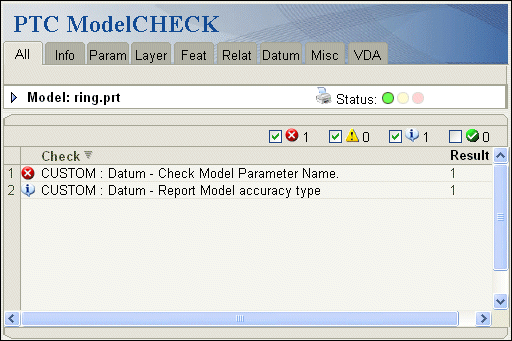
    The following figure illustrates how the results of some custom checks might be displayed in the ModelCHECK report.
    Image
    Custom Check Listeners
    Methods and Properties Introduced:
  • IpfcModelCheckCustomCheckListener.OnCustomCheck
  • CCpfcCustomCheckResults_Create
  • IpfcCustomCheckResults.ResultsCount
  • IpfcCustomCheckResults.ResultsTable
  • IpfcCustomCheckResults.ResultsUrl
  • IpfcModelCheckCustomCheckListener.OnCustomCheckAction
  • IpfcModelCheckCustomCheckListener.OnCustomCheckUpdate
  • The interface IpfcModelCheckCustomCheckListener provides the method signatures to implement a custom Creo ModelCHECK check.
    Each listener method takes the following input arguments:
    •  CheckName—The name of the custom check as defined in the original call to the method IpfcBaseSession.RegisterCustomModelCheck
    •  Mdl—The model being checked.
    The application method that overrides IpfcModelCheckCustomCheckListener.OnCustomCheck is used to evaluate a custom defined check. The user application runs the check on the specified model and returns the results in the form of the IpfcCustomCheckResults object
    •  ResultsCount—Specifies an integer indicating the number of errors found by the check. This value is displayed in the Creo ModelCHECK report generated.
    •  ResultsTable—Specifies a list of text descriptions of the problem encountered for each error or warning.
    •  ResultsUrl—Specifies the link to an application-owned page that provides information on the results of the custom check.
    The method IpfcIpfcCustomCheckResults_Create creates the IpfcCustomCheckResults object containing the custom check results described above.
    Use the properties IpfcCustomCheckResults.SetResultsCount, IpfcCustomCheckResults.SetResultsTable, and IpfcCustomCheckResults.SetResultsUrl listed above to modify the custom checks results obtained.
    The method that overrides IpfcModelCheckCustomCheckListener.OnCustomCheckAction is called when the custom check’s Action button is pressed. The input supplied includes the text selected by the user from the custom check results.
    The method that overrides IpfcModelCheckCustomCheckListener.OnCustomCheckUpdate is called when the custom check’s Update button is pressed. The input supplied includes the text selected by the user from the custom check results.
    Custom Creo ModelCHECK checks can have an Action button to highlight the problem, and possibly an Update button to fix it automatically.
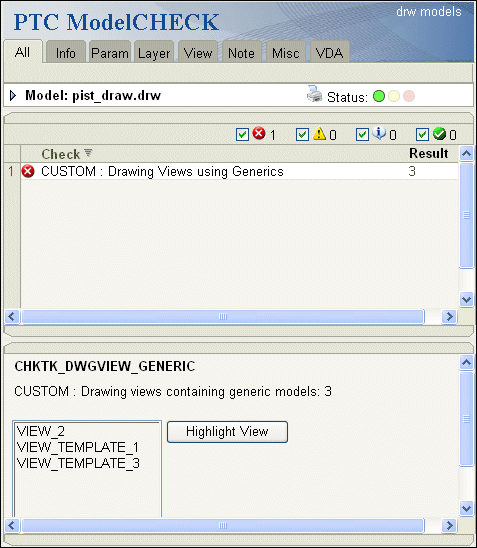
    The following figure displays the Creo ModelCHECK report with an Action button that invokes the IpfcModelCheckCustomCheckListener.OnCustomCheckAction
    Image
    Example 1: Text File for Custom Checks
    The following is the text file custmtk_checks.txt located at <creo_vbapi_loadpoint>/vbapi_examples/models for custom checks examples.
    # Custom TK Check File
    # def-name of check as registered
    
    # MDLPARAM_NAME
    DEF_MDLPARAM_NAME CHKTK_MDLPARAM_NAME_PRT
    TAB_MDLPARAM_NAME DATUM
    MSG_MDLPARAM_NAME CUSTOM : Datum - Model Param Name
    ERM_MDLPARAM_NAME CUSTOM : Datum - Invalid Parameter value.
    DSC_MDLPARAM_NAME CUSTOM : Datum - Check Model Parameter Name.
    
    # MODEL_ACCURACY
    DEF_MODEL_ACCURACY CHKTK_MODEL_ACCURACY_PRT
    TAB_MODEL_ACCURACY DATUM
    MSG_MODEL_ACCURACY CUSTOM : Datum - Report Model accuracy type
    ERM_MODEL_ACCURACY CUSTOM : Datum - Report Model accuracy type
    DSC_MODEL_ACCURACY CUSTOM : Datum - Report Model accuracy type
    
    # DWGVIEW_GENERIC
    DEF_DWGVIEW_GENERIC CHKTK_DWGVIEW_GENERIC_DRW
    TAB_DWGVIEW_GENERIC VIEWS
    MSG_DWGVIEW_GENERIC CUSTOM : Drawing views containing generic models:
    ERM_DWGVIEW_GENERIC N/A
    DSC_DWGVIEW_GENERIC CUSTOM : Drawing Views using Generics
    Example 2: Registering Custom Creo ModelCHECK Checks
    The sample code in the file pfcModelCheckExamples.vb located at <creo_vbapi_loadpoint>/vbapi_examples demonstrates how to register custom Creo ModelCHECK checks using the VB API. The following custom checks are registered:
    •  CHKTK_MDLPARAM_NAME—Determines if the model has a parameter whose name is equal to the model name.
    •  CHKTK_MODEL_ACCURACY—Checks the type of accuracy defined for the model.
    •  CHKTK_DWGVIEW_GENERIC—Drawing mode check that identifies the drawing views that use generic models.
    Example 3: Implementing a Model Name Parameter Check
    The sample code in the file pfcModelCheckExamples.vb located at <creo_vbapi_loadpoint>/vbapi_examples defines the custom Creo ModelCHECK check for the parameter name in a model. This check updates the parameter name to be equal to the model name, if the parameter exists with a different name, or creates the parameter with the model name if it does not exist.
    Example 4: Implementing a Model Accuracy Type Check
    The sample code in the file pfcModelCheckExamples.vb located at <creo_vbapi_loadpoint>/vbapi_examples defines the custom Creo ModelCHECK check for the type of accuracy whether relative or absolute that has been set for a model. This check has a check listener method, but no action or update listener method since it is an info-only check.
    Example 5: Implementing a Check for Drawing Views Using Generic Models
    The sample code in the file pfcModelCheckExamples.vb located at <creo_vbapi_loadpoint>/vbapi_examples defines the custom Creo ModelCHECK check for identifying drawing views using generic models. This check has a check listener method and an action listener method to highlight the views that use generic models.
    Example 6: Changes to the Creo ModelCHECK Configuration Files to enable Custom Checks
    Lines added to the ModelCheck configuration file (default_checks.mch)
     E     Check the item.  If not succeed, report as an error
     W     Check the item.  If not succeed, report as a warning
     N     Do not check the item.
     Y     Check the item.  If not succeed, do not report err or warn
    
    CHKTK_MDLPARAM_NAME_PRT         YNEW     E       E       E       E       Y
    CHKTK_MODEL_ACCURACY_PRT        YNEW     Y       Y       Y       Y       Y
    CHKTK_DWGVIEW_GENERIC_DRW       YNEW     E       E       E       E       Y
    
    Lines added to the ModelCheck start file (sample_start.mcs)
    CUSTMTK_CHECKS_FILE     custmtk_checks.txt