Drawings
This section describes how to program drawing functions using the VB API.
Overview of Drawings in the VB API
This section describes the functions that deal with drawings. You can create drawings of all Creo Parametric models using the functions in the VB API. You can annotate the drawing, manipulate dimensions, and use layers to manage the display of different items.
Unless otherwise specified, the VB API functions that operate on drawings use world units.
Creating Drawings from Templates
Drawing templates simplify the process of creating a drawing using the VB API. Creo Parametric can create views, set the view display, create snap lines, and show the model dimensions based on the template. Use templates to:
•  Define layout views
•  Set view display
•  Place notes
•  Place symbols
•  Define tables
•  Show dimensions
Method Introduced:
  • IpfcBaseSession.CreateDrawingFromTemplate()
  • Use the method IpfcBaseSession.CreateDrawingFromTemplate() to create a drawing from the drawing template and to return the created drawing. The attributes are:
    •  New drawing name
    •  Name of an existing template
    •  Name and type of the solid model to use while populating template views
    •  Sequence of options to create the drawing. The options are as follows:
      EpfcDRAWINGCREATE_DISPLAY_DRAWING—display the new drawing.
      EpfcDRAWINGCREATE_SHOW_ERROR_DIALOG—display the error dialog box.
      EpfcDRAWINGCREATE_WRITE_ERROR_FILE—write the errors to a file.
      EpfcDRAWINGCREATE_PROMPT_UNKNOWN_PARAMS—prompt the user on encountering unknown parameters
    Drawing Creation Errors
    The exception IpfcXToolkitDrawingCreateErrors is thrown if an error is encountered when creating a drawing from a template. This exception contains a list of errors which occurred during drawing creation.
    Note
    When this exception type is encountered, the drawing is actually created, but some of the contents failed to generate correctly.
    The exception message will list the details for each error including its type, sheet number, view name, and (if applicable) item name. The types of errors are as follows:
    •  Type—The type of error as follows:
      EpfcDWGCREATE_ERR_SAVED_VIEW_DOESNT_EXIST—Saved view does not exist.
      EpfcDWGCREATE_ERR_X_SEC_DOESNT_EXIST—Specified cross section does not exist.
      EpfcDWGCREATE_ERR_EXPLODE_DOESNT_EXIST—Exploded state did not exist.
      EpfcDWGCREATE_ERR_MODEL_NOT_EXPLODABLE—Model cannot be exploded.
      EpfcDWGCREATE_ERR_SEC_NOT_PERP—Cross section view not perpendicular to the given view.
      EpfcDWGCREATE_ERR_NO_RPT_REGIONS—Repeat regions not available.
      EpfcDWGCREATE_ERR_FIRST_REGION_USED—Repeat region was unable to use the region specified.
      EpfcDWGCREATE_ERR_NOT_PROCESS_ASSEM— Model is not a process assembly view.
      EpfcDWGCREATE_ERR_NO_STEP_NUM—The process step number does not exist.
      EpfcDWGCREATE_ERR_TEMPLATE_USED—The template does not exist.
      EpfcDWGCREATE_ERR_NO_PARENT_VIEW_FOR_PROJ—There is no possible parent view for this projected view.
      EpfcDWGCREATE_ERR_CANT_GET_PROJ_PARENT—Could not get the projected parent for a drawing view.
      EpfcDWGCREATE_ERR_SEC_NOT_PARALLEL—The designated cross section was not parallel to the created view.
      EpfcDWGCREATE_ERR_SIMP_REP_DOESNT_EXIST—The designated simplified representation does not exist.
    Example: Drawing Creation from a Template
    The sample code in the file pfcDrawingExamples.vb located at <creo_vbapi_loadpoint>/vbapi_examples creates a new drawing using a predefined template.
    Obtaining Drawing Models
    This section describes how to obtain drawing models.
    Methods Introduced:
  • IpfcBaseSession.RetrieveModel()
  • IpfcBaseSession.GetModel()
  • IpfcBaseSession.GetModelFromDescr()
  • IpfcBaseSession.ListModels()
  • IpfcBaseSession.ListModelsByType()
  • The method IpfcBaseSession.RetrieveModel() retrieves the drawing specified by the model descriptor. Model descriptors are data objects used to describe a model file and its location in the system. The method returns the retrieved drawing.
    The method IpfcBaseSession.GetModel() returns a drawing based on its name and type, whereas IpfcBaseSession.GetModelFromDescr() returns a drawing specified by the model descriptor. The model must be in session.
    Use the method IpfcBaseSession.ListModels() to return a sequence of all the drawings in session.
    Drawing Information
    Methods and Property Introduced:
  • IpfcModel2D.ListModels()
  • IpfcModel2D.GetCurrentSolid()
  • IpfcModel2D.ListSimplifiedReps()
  • IpfcModel2D.TextHeight
  • The method IpfcModel2D.ListModels() returns a list of all the solid models used in the drawing.
    The method IpfcModel2D.GetCurrentSolid() returns the current solid model of the drawing.
    The method IpfcModel2D.ListSimplifiedReps() returns the simplified representations of a solid model that are assigned to the drawing.
    The property IpfcModel2D.TextHeight returns the text height of the drawing.
    Drawing Operations
    Methods Introduced:
  • IpfcModel2D.AddModel()
  • IpfcModel2D.DeleteModel()
  • IpfcModel2D.ReplaceModel()
  • IpfcModel2D.SetCurrentSolid()
  • IpfcModel2D.AddSimplifiedRep()
  • IpfcModel2D.DeleteSimplifiedRep()
  • IpfcModel2D.Regenerate()
  • IpfcModel2D.CreateDrawingDimension()
  • IpfcModel2D.CreateView()
  • The method IpfcModel2D.AddModel() adds a new solid model to the drawing.
    The method IpfcModel2D.DeleteModel() removes a model from the drawing. The model to be deleted should not appear in any of the drawing views.
    The method IpfcModel2D.ReplaceModel() replaces a model in the drawing with a related model (the relationship should be by family table or interchange assembly). It allows you to replace models that are shown in drawing views and regenerates the view.
    The method IpfcModel2D.SetCurrentSolid() assigns the current solid model for the drawing. Before calling this method, the solid model must be assigned to the drawing using the method IpfcModel2D.AddModel(). To see the changes to parameters and fields reflecting the change of the current solid model, regenerate the drawing using the method IpfcSheetOwner.RegenerateSheet().
    The method IpfcModel2D.AddSimplifiedRep() associates the drawing with the simplified representation of an assembly
    The method IpfcModel2D.DeleteSimplifiedRep() removes the association of the drawing with an assembly simplified representation. The simplified representation to be deleted should not appear in any of the drawing views.
    Use the property IpfcModel2D.Regenerate() to regenerate the drawing draft entities and appearance.
    The method IpfcModel2D.CreateDrawingDimension() creates a new drawing dimension based on the data object that contains information about the location of the dimension. This method returns the created dimension. Refer to the section Drawing Dimensions.
    The method IpfcModel2D.CreateView() creates a new drawing view based on the data object that contains information about how to create the view. The method returns the created drawing view. Refer to the section Creating Drawing Views.
    Example: Replace Drawing Model Solid with its Generic
    The sample code in the file pfcDrawingExamples.vb located at <creo_vbapi_loadpoint>/vbapi_examples replaces all solid model instances in a drawing with its generic. Models are not replaced if the generic model is already present in the drawing.
    Drawing Sheets
    A drawing sheet is represented by its number. Drawing sheets in the VB API are identified by the same sheet numbers seen by a Creo Parametric user.
    Note
    These identifiers may change if the sheets are moved as a consequence of adding, removing or reordering sheets.
    Drawing Sheet Information
    Methods and Properties Introduced
  • IpfcSheetOwner.GetSheetTransform()
  • IpfcSheetOwner.GetSheetInfo()
  • IpfcSheetOwner.GetSheetScale()
  • IpfcSheetOwner.GetSheetFormat()
  • IpfcSheetOwner.GetSheetFormatDescr()
  • IpfcSheetOwner.GetSheetBackgroundView()
  • IpfcSheetOwner.NumberOfSheets
  • IpfcSheetOwner.CurrentSheetNumber
  • IpfcSheetOwner.GetSheetUnits()
  • Superseded Method:
  • IpfcSheetOwner.GetSheetData()
  • The method IpfcSheetOwner.GetSheetTransform() returns the transformation matrix for the sheet specified by the sheet number. This transformation matrix includes the scaling needed to convert screen coordinates to drawing coordinates (which use the designated drawing units).
    The method IpfcSheetOwner.GetSheetInfo() returns sheet data including the size, orientation, and units of the sheet specified by the sheet number.
    The method IpfcSheetOwner.GetSheetData() and the interface IpfcSheetData have been deprecated. Use the method IpfcSheetOwner.GetSheetInfo() and the interface IpfcSheetInfo instead.
    The method IpfcSheetOwner.GetSheetScale() returns the scale of the drawing on a particular sheet based on the drawing model used to measure the scale. If no models are used in the drawing then the default scale value is 1.0.
    The method IpfcSheetOwner.GetSheetFormat() returns the drawing format used for the sheet specified by the sheet number. It returns a null value if no format is assigned to the sheet.
    The method IpfcSheetOwner.GetSheetFormatDescr() returns the model descriptor of the drawing format used for the specified drawing sheet.
    The method IpfcSheetOwner.GetSheetBackgroundView() returns the view object representing the background view of the sheet specified by the sheet number.
    The property IpfcSheetOwner.NumberOfSheets returns the number of sheets in the model.
    The property IpfcSheetOwner.CurrentSheetNumber returns the current sheet number in the model.
    Note
    The sheet numbers range from 1 to n, where n is the number of sheets.
    The method IpfcSheetOwner.GetSheetUnits() returns the units used by the sheet specified by the sheet number.
    Drawing Sheet Operations
    Methods Introduced:
  • IpfcSheetOwner.AddSheet()
  • IpfcSheetOwner.DeleteSheet()
  • IpfcSheetOwner.ReorderSheet()
  • IpfcSheetOwner.RegenerateSheet()
  • IpfcSheetOwner.SetSheetScale()
  • IpfcSheetOwner.SetSheetFormat()
  • The method IpfcSheetOwner.AddSheet() adds a new sheet to the model and returns the number of the new sheet.
    The method IpfcSheetOwner.DeleteSheet() removes the sheet specified by the sheet number from the model.
    Use the method IpfcSheetOwner.ReorderSheet() to reorder the sheet from a specified sheet number to a new sheet number.
    Note
    The sheet number of other affected sheets also changes due to reordering or deletion.
    The method IpfcSheetOwner.RegenerateSheet() regenerates the sheet specified by the sheet number.
    Note
    You can regenerate a sheet only if it is displayed.
    Use the method IpfcSheetOwner.SetSheetScale() to set the scale of a model on the sheet based on the drawing model to scale and the scale to be used. Pass the value of the DrawingModel parameter as null to select the current drawing model.
    Use the method IpfcSheetOwner.SetSheetFormat() to apply the specified format to a drawing sheet based on the drawing format, sheet number of the format, and the drawing model.
    The sheet number of the format is specified by the FormatSheetNumber parameter. This number ranges from 1 to the number of sheets in the format. Pass the value of this parameter as null to use the first format sheet.
    The drawing model is specified by the DrawingModel parameter. Pass the value of this parameter as null to select the current drawing model.
    Example: Listing Drawing Sheets
    The sample code in the file pfcDrawingExamples.vb located at <creo_vbapi_loadpoint>/vbapi_examples shows how to list the sheets in the current drawing. The information is placed in an external browser window.
    Drawing Views
    A drawing view is represented by the interface IpfcView2D. All model views in the drawing are associative, that is, if you change a dimensional value in one view, the system updates other drawing views accordingly. The model automatically reflects any dimensional changes that you make to a drawing. In addition, corresponding drawings also reflect any changes that you make to a model such as the addition or deletion of features and dimensional changes.
    Creating Drawing Views
    Method Introduced:
  • IpfcModel2D.CreateView()
  • The method IpfcModel2D.CreateView() creates a new view in the drawing. Before calling this method, the drawing must be displayed in a window.
    The interface IpfcView2DCreateInstructions contains details on how to create the view. The types of drawing views supported for creation are:
    •  EpfcDRAWVIEW_GENERAL—General drawing views
    •  EpfcDRAWVIEW_PROJECTION—Projected drawing views
    General Drawing Views
    The interface IpfcGeneralViewCreateInstructions contains details on how to create general drawing views.
    Methods and Properties Introduced:
  • CCpfcGeneralViewCreateInstructions.Create()
  • IpfcGeneralViewCreateInstructions.ViewModel
  • IpfcGeneralViewCreateInstructions.Location
  • IpfcGeneralViewCreateInstructions.SheetNumber
  • IpfcGeneralViewCreateInstructions.Orientation
  • IpfcGeneralViewCreateInstructions.Exploded
  • IpfcGeneralViewCreateInstructions.Scale
  • IpfcGeneralViewCreateInstructions.ViewScale
  • The method CCpfcGeneralViewCreateInstructions.Create() creates the IpfcGeneralViewCreateInstructions data object used for creating general drawing views.
    Use the property IpfcGeneralViewCreateInstructions.ViewModel to assign the solid model to display in the created general drawing view.
    Use the property IpfcGeneralViewCreateInstructions.SheetNumber to assign the location in a drawing sheet to place the created general drawing view.
    Use the property IpfcGeneralViewCreateInstructions.SheetNumber to set the number of the drawing sheet in which the general drawing view is created.
    The property IpfcGeneralViewCreateInstructions.Orientation assigns the orientation of the model in the general drawing view in the form of the IpfcTransform3D data object. The transformation matrix must only consist of the rotation to be applied to the model. It must not consist of any displacement or scale components. If necessary, set the displacement to {0, 0, 0} using the method IpfcTransform3D.SetOrigin, and remove any scaling factor by normalizing the matrix.
    Use the property IpfcGeneralViewCreateInstructions.Exploded to set the created general drawing view to be an exploded view.
    Use the property IpfcGeneralViewCreateInstructions.Scale to assign a scale to the created general drawing view. This value is optional, if not assigned, the default drawing scale is used.
    Use the property IpfcGeneralViewCreateInstructions.ViewScale to assign a scale to the created general drawing view. This value is optional, if not assigned, the default drawing scale is used.
    Projected Drawing Views
    The interfaceIpfcProjectionViewCreateInstructions contains details on how to create general drawing views.
    Methods and Properties Introduced:
  • CCpfcProjectionViewCreateInstructions.Create()
  • IpfcProjectionViewCreateInstructions.ParentView
  • IpfcProjectionViewCreateInstructions.Location
  • IpfcProjectionViewCreateInstructions.Exploded
  • The method CCpfcProjectionViewCreateInstructions.Create() creates the IpfcProjectionViewCreateInstructions data object used for creating projected drawing views.
    Use the property IpfcProjectionViewCreateInstructions.ParentView to assign the parent view for the projected drawing view.
    Use the property IpfcProjectionViewCreateInstructions.Location to assign the location of the projected drawing view. This location determines how the drawing view will be oriented.
    Use the property IpfcProjectionViewCreateInstructions.Exploded to set the created projected drawing view to be an exploded view.
    Example: Creating Drawing Views
    The sample code in the file pfcDrawingExamples.vb located at <creo_weblink_loadpoint>/weblinkexamples/jscript<creo_vbapi_loadpoint>/vbapi_examples adds a new sheet to a drawing and creates three views of a selected model.
    Obtaining Drawing Views
    Methods and Property Introduced:
  • IpfcSelection.SelView2D
  • IpfcpfcModel2D.List2DViews()
  • IpfcModel2D.GetViewByName()
  • IpfcModel2D.GetViewDisplaying()
  • IpfcSheetOwner.GetSheetBackgroundView()
  • The property IpfcSelection.SelView2D returns the selected drawing view (if the user selected an item from a drawing view). It returns a null value if the selection does not contain a drawing view.
    The method IpfcpfcModel2D.List2DViews() lists and returns the drawing views found. This method does not include the drawing sheet background views returned by the method IpfcSheetOwner.GetSheetBackgroundView().
    The method IpfcModel2D.GetViewByName() returns the drawing view based on the name. This method returns a null value if the specified view does not exist.
    The method IpfcModel2D.GetViewDisplaying() returns the drawing view that displays a dimension. This method returns a null value if the dimension is not displayed in the drawing.
    Note
    This method works for solid and drawing dimensions.
    The method IpfcSheetOwner.GetSheetBackgroundView() returns the drawing sheet background views.
    Drawing View Information
    Methods and Properties Introduced:
  • IpfcChild.DBParent
  • IpfcView2D.GetSheetNumber()
  • IpfcView2D.IsBackground
  • IpfcView2D.GetModel()
  • IpfcView2D.Scale()
  • IpfcView2D.GetIsScaleUserdefined()
  • IpfcView2D.Outline
  • IpfcView2D.GetLayerDisplayStatus()
  • IpfcView2D.IsViewdisplayLayerDependent
  • IpfcView2D.Display
  • IpfcView2D.GetTransform()
  • IpfcView2D.Name
  • IpfcView2D.GetSimpRep()
  • The inherited property IpfcChild.DBParent, when called on a IpfcView2D object, provides the drawing model which owns the specified drawing view. The return value of the method can be downcast to a IpfcModel2D object.
    Note
    The property IpfcChild.OId is reserved for internal use.
    The method IpfcView2D.GetSheetNumber() returns the sheet number of the sheet that contains the drawing view.
    The property IpfcView2D.IsBackground returns a value that indicates whether the view is a background view or a model view.
    The method IpfcView2D.GetModel() returns the solid model displayed in the drawing view.
    The property IpfcView2D.Scale() returns the scale of the drawing view.
    The method IpfcView2D.GetIsScaleUserdefined() specifies if the drawing has a user-defined scale.
    The property IpfcView2D.Outline returns the position of the view in the sheet in world units.
    The method IpfcView2D.GetLayerDisplayStatus() returns the display status of the specified layer in the drawing view.
    The property IpfcView2D.Display returns an output structure that describes the display settings of the drawing view. The fields in the structure are as follows:
    •  Style—Whether to display as wireframe, hidden lines, no hidden lines, or shaded
    •  TangentStyle—Linestyle used for tangent edges
    •  CableStyle—Linestyle used to display cables
    •  RemoveQuiltHiddenLines—Whether or not to apply hidden-line-removal to quilts
    •  ShowConceptModel—Whether or not to display the skeleton
    •  ShowWeldXSection—Whether or not to include welds in the cross-section
    The method IpfcView2D.GetTransform() returns a matrix that describes the transform between 3D solid coordinates and 2D world units for that drawing view. The transformation matrix is a combination of the following factors:
    •  The location of the view origin with respect to the drawing origin.
    •  The scale of the view units with respect to the drawing units
    •  The rotation of the model with respect to the drawing coordinate system.
    The property IpfcView2D.Name returns the name of the specified view in the drawing.
    The simplified representations of assembly and part can be used as drawing models to create general views. Use the method IpfcView2D.GetSimpRep() to retrieve the simplified representation for the specified view in the drawing.
    Example: Listing the Views in a Drawing
    The sample code in the file pfcDrawingExamples.vb located at <creo_vbapi_loadpoint>/vbapi_examples creates an information window about all the views in a drawing. The information is placed in an external browser window.
    Drawing Views Operations
    Methods Introduced:
  • IpfcView2D.Translate()
  • IpfcView2D.Delete()
  • IpfcView2D.Regenerate()
  • IpfcView2D.SetLayerDisplayStatus()
  • The method IpfcView2D.Translate() moves the drawing view by the specified transformation vector.
    The method IpfcView2D.Delete() deletes a specified drawing view. Set the DeleteChildren parameter to true to delete the children of the view. Set this parameter to false or null to prevent deletion of the view if it has children.
    The method IpfcView2D.Regenerate() erases the displayed view of the current object, regenerates the view from the current drawing, and redisplays the view.
    The method IpfcView2D.SetLayerDisplayStatus() sets the display status for the layer in the drawing view.
    Drawing Dimensions
    This section describes the VB API methods that give access to the types of dimensions that can be created in the drawing mode. They do not apply to dimensions created in the solid mode, either those created automatically as a result of feature creation, or reference dimension created in a solid. A drawing dimension or a reference dimension shown in a drawing is represented by the interfaceIpfcDimension2D.
    Obtaining Drawing Dimensions
    Methods and Property Introduced:
  • IpfcModelItemOwner.ListItems()
  • IpfcModelItemOwner.GetItemById()
  • IpfcSelection.SelItem
  • The method IpfcModelItemOwner.ListItems() returns a list of drawing dimensions specified by the parameter Type or returns null if no drawing dimensions of the specified type are found. This method lists only those dimensions created in the drawing.
    The values of the parameter Type for the drawing dimensions are:
    •  ITEM_DIMENSION—Dimension
    •  ITEM_REF_DIMENSION—Reference dimension
    Set the parameter Type to the type of drawing dimension to retrieve. If this parameter is set to null, then all the dimensions in the drawing are listed.
    The method IpfcModelItemOwner.GetItemById() returns a drawing dimension based on the type and the integer identifier. The method returns only those dimensions created in the drawing. It returns a null if a drawing dimension with the specified attributes is not found.
    The property IpfcSelection.SelItem returns the value of the selected drawing dimension.
    Creating Drawing Dimensions
    Methods Introduced:
  • CCpfcDrawingDimCreateInstructions.Create()
  • IpfcModel2D.CreateDrawingDimension()
  • CCpfcEmptyDimensionSense.Create()
  • CCCpfcPointDimensionSense.Create()
  • CCpfcSplinePointDimensionSense.Create()
  • CCpfcTangentIndexDimensionSense.Create()
  • CCpfcLinAOCTangentDimensionSense.Create()
  • CCpfcAngleDimensionSense.Create()
  • CCpfcPointToAngleDimensionSense.Create()
  • The method CCpfcDrawingDimCreateInstructions.Create() creates an instructions object that describes how to create a drawing dimension using the method IpfcModel2D.CreateDrawingDimension().
    The parameters of the instruction object are:
    •  Attachments—The entities that the dimension is attached to. The selections should include the drawing model view.
    •  IsRefDimension—True if the dimension is a reference dimension, otherwise null or false.
    •  OrientationHint—Describes the orientation of the dimensions in cases where this cannot be deduced from the attachments themselves.
    •  Senses—Gives more information about how the dimension attaches to the entity, i.e., to what part of the entity and in what direction the dimension runs. The types of dimension senses are as follows:
      EpfcDIMSENSE_NONE
      EpfcDIMSENSE_POINT
      EpfcDIMSENSE_SPLINE_PT
      EpfcDIMSENSE_TANGENT_INDEX
      EpfcDIMSENSE_LINEAR_TO_ARC_OR_CIRCLE_TANGENT
      EpfcDIMSENSE_ANGLE
      EpfcDIMSENSE_POINT_TO_ANGLE
    •  TextLocation—The location of the dimension text, in world units.
    The method IpfcModel2D.CreateDrawingDimension() creates a dimension in the drawing based on the instructions data object that contains information needed to place the dimension. It takes as input an array of pfcSelection objects and an array of pfcDimensionSense structures that describe the required attachments. The method returns the created drawing dimension.
    The method CCpfcEmptyDimensionSense.Create() creates a new dimension sense associated with the type DIMSENSE NONE. The sense field is set to Type In this case no information such as location or direction is needed to describe the attachment points. For example, if there is a single attachment which is a straight line, the dimension is the length of the straight line. If the attachments are two parallel lines, the dimension is the distance between them.
    The method CCCpfcPointDimensionSense.Create() creates a new dimension sense associated with the type DIMSENSE POINT which specifies the part of the entity to which the dimension is attached. The sense field is set to the value of the parameter PointType.
    The possible values of PointType are:
    •  EpfcDIMPOINT_END1— The first end of the entity
    •  EpfcDIMPOINT_END2—The second end of the entity
    •  EpfcDIMPOINT_CENTER—The center of an arc or circle
    •  EpfcDIMPOINT_NONE—No information such as location or direction of the attachment is specified. This is similar to setting the PointType to DIMSENSE NONE.
    •  EpfcDIMPOINT_MIDPOINT—The mid point of the entity
    The method CCpfcSplinePointDimensionSense.Create() creates a dimension sense associated with the type DIMSENSE_SPLINE_PT. This means that the attachment is to a point on a spline. The sense field is set to SplinePointIndex i.e., the index of the spline point.
    The method CCpfcTangentIndexDimensionSense.Create() creates a new dimension sense associated with the type DIMSENSE_TANGENT_INDEX. The attachment is to a tangent of the entity, which is an arc or a circle. The sense field is set to TangentIndex, i.e., the index of the tangent of the entity.
    The method CCpfcLinAOCTangentDimensionSense.Create() creates a new dimension sense associated with the type DIMSENSE_LINEAR_TO_ARC_OR_CIRCLE_TANGENT. The dimension is the perpendicular distance between the a line and a tangent to an arc or a circle that is parallel to the line. The sense field is set to the value of the parameter TangentType.
    The possible values of TangentType are:
    •  EpfcDIMLINAOCTANGENT_LEFT0—The tangent is to the left of the line, and is on the same side, of the center of the arc or circle, as the line.
    •  EpfcDIMLINAOCTANGENT_RIGHT0—The tangent is to the right of the line, and is on the same side, of the center of the arc or circle, as the line.
    •  EpfcDIMLINAOCTANGENT_LEFT1—The tangent is to the left of the line, and is on the opposite side of the line.
    •  EpfcDIMLINAOCTANGENT_RIGHT1— The tangent is to the right of the line, and is on the opposite side of the line.
    The method CCpfcAngleDimensionSense.Create() creates a new dimension sense associated with the type DIMSENSE_ANGLE. The dimension is the angle between two straight entities. The sense field is set to the value of the parameter AngleOptions.
    The possible values of AngleOptions are:
    •  IsFirst—Is set to TRUE if the angle dimension starts from the specified entity in a counterclockwise direction. Is set to FALSE if the dimension ends at the specified entity. The value is TRUE for one entity and FALSE for the other entity forming the angle.
    •  ShouldFlip—If the value of ShouldFlip is FALSE, and the direction of the specified entity is away from the vertex of the angle, then the dimension attaches directly to the entity. If the direction of the entity is away from the vertex of the angle, then the dimension is attached to the a witness line. The witness line is in line with the entity but in the direction opposite to the vertex of the angle. If the value of ShouldFlip is TRUE then the above cases are reversed.
    The method CCpfcPointToAngleDimensionSense.Create() creates a new dimension sense associated with the type DIMSENSE_POINT_TO_ANGLE. The dimension is the angle between a line entity and the tangent to a curved entity. The curve attachment is of the type DIMSENSE_POINT_TO_ANGLE and the line attachment is of the type DIMSENSE POINT. In this case both the angle and the angle_sense fields must be set. The field sense shows which end of the curve the dimension is attached to and the field angle_sense shows the direction in which the dimension rotates and to which side of the tangent it attaches.
    Drawing Dimensions Information
    Methods and Properties Introduced:
  • IpfcDimension2D.IsAssociative
  • IpfcDimension2D.GetIsReference()
  • IpfcDimension2D.IsDisplayed
  • IpfcDimension2D.GetAttachmentPoints()
  • IpfcDimension2D.GetDimensionSenses()
  • IpfcDimension2D.GetOrientationHint()
  • IpfcDimension2D.GetBaselineDimension()
  • IpfcDimension2D.Location
  • IpfcDimension2D.GetView()
  • IpfcDimension2D.GetTolerance()
  • IpfcDimension2D.IsToleranceDisplayed
  • The property IpfcDimension2D.IsAssociative returns whether the dimension or reference dimension in a drawing is associative.
    The method IpfcDimension2D.GetIsReference() determines whether the drawing dimension is a reference dimension.
    The property IpfcDimension2D.IsDisplayed determines whether the dimension will be displayed in the drawing.
    The method IpfcDimension2D.GetAttachmentPoints() returns a sequence of attachment points. The dimension senses array returned by the method IpfcDimension2D.GetDimensionSenses() gives more information on how these attachments are interpreted.
    The method IpfcDimension2D.GetDimensionSenses() returns a sequence of dimension senses, describing how the dimension is attached to each attachment returned by the method IpfcDimension2D.GetAttachmentPoints().
    The method IpfcDimension2D.GetOrientationHint() returns the orientation hint for placing the drawing dimensions. The orientation hint determines how Creo Parametric will orient the dimension with respect to the attachment points.
    Note
    This methods described above are applicable only for dimensions created in the drawing mode. It does not support dimensions created at intersection points of entities.
    The method IpfcDimension2D.GetBaselineDimension() returns an ordinate baseline drawing dimension. It returns a null value if the dimension is not an ordinate dimension.
    Note
    The method updates the display of the dimension only if it is currently displayed.
    The property IpfcDimension2D.Location returns the placement location of the dimension.
    The method IpfcDimension2D.GetView() returns the drawing view in which the dimension is displayed. This method applies to dimensions stored in the solid or in the drawing.
    The method IpfcDimTolerance object. A null value indicates a nominal tolerance.
    Use the property IpfcDimension2D.IsToleranceDisplayed determines whether or not the dimension’s tolerance is displayed in the drawing.
    Drawing Dimensions Operations
    Methods Introduced:
  • IpfcDimension2D.ConvertToLinear()
  • IpfcDimension2D.ConvertToOrdinate()
  • IpfcDimension2D.ConvertToBaseline()
  • IpfcDimension2D.SwitchView()
  • IpfcDimension2D.SetTolerance()
  • IpfcDimension2D.EraseFromModel2D()
  • IpfcModel2D.SetViewDisplaying()
  • The method IpfcDimension2D.ConvertToLinear() converts an ordinate drawing dimension to a linear drawing dimension. The drawing containing the dimension must be displayed.
    The method IpfcDimension2D.ConvertToOrdinate() converts a linear drawing dimension to an ordinate baseline dimension.
    The method IpfcDimension2D.ConvertToBaseline() converts a location on a linear drawing dimension to an ordinate baseline dimension. The method returns the newly created baseline dimension.
    Note
    The method updates the display of the dimension only if it is currently displayed.
    The method IpfcDimension2D.SwitchView() changes the view where a dimension created in the drawing is displayed.
    The method IpfcDimension2D.SetTolerance() assigns the upper and lower tolerance limits of the drawing dimension.
    The method IpfcDimension2D.EraseFromModel2D() permanently erases the dimension from the drawing.
    The method IpfcModel2D.SetViewDisplaying() changes the view where a dimension created in a solid model is displayed.
    Example: Command Creation of Dimensions from Model Datum Points
    The sample code in the file pfcDrawingExamples.vb located at <creo_vbapi_loadpoint>/vbapi_examples shows a command which creates vertical and horizontal ordinate dimensions from each datum point in a model in a drawing view to a selected coordinate system datum.
    Drawing Tables
    A drawing table in the VB API is represented by the IpfcTable. It is a child of the IpfcModelItem interface .
    Some drawing table methods operate on specific rows or columns. The row and column numbers in the VB API begin with 1 and range up to the total number of rows or columns in the table. Some drawing table methods operate on specific table cells. The interfaceIpfcTableCell is used to represent a drawing table cell.
    Creating Drawing Cells
    Method Introduced:
  • CCpfcTableCell.Create()
  • The method CCpfcTableCell.Create() creates the IpfcTableCell object representing a cell in the drawing table.
    Some drawing table methods operate on specific drawing segment. A multisegmented drawing table contains 2 or more areas in the drawing. Inserting or deleting rows in one segment of the table can affect the contents of other segments. Table segments are numbered beginning with 0. If the table has only a single segment, use 0 as the segment id in the relevant methods.
    Selecting Drawing Tables and Cells
    Methods and Properties Introduced:
  • IpfcBaseSession.Select()
  • IpfcSelection.SelItem
  • IpfcSelection.SelTableCell
  • IpfcSelection.SelTableSegment
  • Tables may be selected using the method IpfcBaseSession.Select(). Pass the filter dwg_table to select an entire table and the filter table_cell to prompt the user to select a particular table cell.
    The property IpfcSelection.SelItem returns the selected table handle. It is a model item that can be cast to a IpfcTable object.
    The property IpfcSelection.SelTableCell returns the row and column indices of the selected table cell.
    The property IpfcSelection.SelTableSegment returns the table segment identifier for the selected table cell. If the table consists of a single segment, this method returns the identifier 0.
    Creating Drawing Tables
    Methods Introduced:
  • CCpfcTableCreateInstructions.Create()
  • IpfcTableOwner.CreateTable()
  • The method CCpfcTableCreateInstructions.Create() creates the IpfcTableCreateInstructions data object that describes how to construct a new table using the method IpfcTableOwner.CreateTable().
    The parameters of the instructions data object are:
    •  Origin—This parameter stores a three dimensional point specifying the location of the table origin. The origin is the position of the top left corner of the table.
    •  RowHeights—Specifies the height of each row of the table.
    •  ColumnData—Specifies the width of each column of the table and its justification.
    •  SizeTypes—Indicates the scale used to measure the column width and row height of the table.
    The method IpfcTableOwner.CreateTable() creates a table in the drawing specified by the IpfcTableCreateInstructions data object.
    Retrieving Drawing Tables
    Methods Introduced
  • CCpfcTableRetrieveInstructions.Create()
  • IpfcTableRetrieveInstructions.FileName
  • IpfcTableRetrieveInstructions.Path
  • IpfcTableRetrieveInstructions.Version
  • IpfcTableRetrieveInstructions.Position
  • IpfcTableRetrieveInstructions.ReferenceSolid
  • IpfcTableRetrieveInstructions.ReferenceRep
  • IpfcTableOwner.RetrieveTable()
  • IpfcTableOwner.RetrieveTableByOrigin()
  • The method IpfcTableOwner.RetrieveTable() retrieves a table specified by the pfcTableRetrieveInstructions data object from a file on the disk. It returns the retrieved table. The data object contains information on the table to retrieve and is returned by the method CCpfcTableRetrieveInstructions.Create().
    The method CCpfcTableRetrieveInstructions.Create() creates the IpfcTableRetrieveInstructions data object that describes how to retrieve a drawing table using the methods IpfcTableOwner.RetrieveTable() and IpfcTableOwner.RetrieveTableByOrigin(). The method returns the created instructions data object.
    The parameters of the instruction object are:
    •  FileName—Name of the file containing the drawing table.
    •  Position—Coordinates of the point on the drawing sheet, where the retrieved table must be placed. You must specify the value in screen coordinates.
    You can also set the parameters for IpfcTableRetrieveInstructions data object using the following property:
    •  IpfcTableRetrieveInstructions.FileName—Sets the name of the drawing table. You must not specify the extension.
    •  IpfcTableRetrieveInstructions.Path—Sets the path to the drawing table file. The path must be specified relative to the working directory.
    •  IpfcTableRetrieveInstructions.Version—Sets the version of the drawing table that must be retrieved. If you specify NULL , the latest version of the drawing table is retrieved.
    •  IpfcTableRetrieveInstructions.Position—Sets the coordinates of the point on the drawing sheet, where the table must be placed. You must specify the value in screen coordinates.
    •  IpfcTableRetrieveInstructions.ReferenceSolid—Sets the model from which data must be copied into the drawing table. If this argument is passed as NULL, an empty table is created.
    •  IpfcTableRetrieveInstructions.ReferenceRep—Sets the handle to the simplified representation in a solid, from which data must be copied into the drawing table. If this argument is passed as NULL, and the argument solid is not NULL, then data from the solid model is copied into the drawing table
    The method IpfcTableOwner.RetrieveTable() retrieves a table specified by the IpfcTableRetrieveInstructions data object from a file on the disk. It returns the retrieved table. The upper-left corner of the table is placed on the drawing sheet at the position specified by the pfcTableRetrieveInstructions data object.
    The method IpfcTableOwner.RetrieveTableByOrigin() also retrieves a table specified by the IpfcTableRetrieveInstructions data object from a file on the disk. The origin of the table is placed on the drawing sheet at the position specified by the IpfcTableRetrieveInstructions data object. Tables can be created with different origins by specifying the option Direction, in the Insert Table dialog box.
    Drawing Tables Information
    Methods Introduced:
  • IpfcTableOwner.ListTables()
  • IpfcTableOwner.GetTable()
  • IpfcTable.GetRowCount()
  • IpfcTable.GetColumnCount()
  • IpfcTable.CheckIfIsFromFormat()
  • IpfcTable.GetRowSize()
  • IpfcTable.GetColumnSize()
  • IpfcTable.GetText()
  • IpfcTable.GetCellNote()
  • The method IpfcTableOwner.ListTables() returns a sequence of tables found in the model.
    The method IpfcTableOwner.GetTable() returns a table specified by the table identifier in the model. It returns a null value if the table is not found.
    The method IpfcTable.GetRowCount() returns the number of rows in the table.
    The method IpfcTable.GetColumnCount() returns the number of columns in the table.
    The method IpfcTable.CheckIfIsFromFormat() checks if the drawing table was created using the format. The method returns a true value if the table was created by applying the drawing format.
    The method IpfcTable.GetRowSize() returns the height of the drawing table row specified by the segment identifier and the row number.
    The method IpfcTable.GetColumnSize() returns the width of the drawing table column specified by the segment identifier and the column number.
    The method IpfcTable.GetText() returns the sequence of text in a drawing table cell. Set the value of the parameter Mode to DWGTABLE_NORMAL to get the text as displayed on the screen. Set it to DWGTABLE_FULL to get symbolic text, which includes the names of parameter references in the table text.
    The method IpfcTable.GetCellNote() returns the detail note item contained in the table cell.
    Drawing Tables Operations
    Methods Introduced:
  • IpfcTable.Erase()
  • IpfcTable.Display()
  • IpfcTable.RotateClockwise()
  • IpfcTable.InsertRow()
  • IpfcTable.InsertColumn()
  • IpfcTable.MergeRegion()
  • IpfcTable.SubdivideRegion()
  • IpfcTable.DeleteRow()
  • IpfcTable.DeleteColumn()
  • IpfcTable.SetText()
  • IpfcTableOwner.DeleteTable()
  • The method IpfcTable.Erase() erases the specified table temporarily from the display. It still exists in the drawing. The erased table can be displayed again using the method IpfcTable.Display(). The table will also be redisplayed by a window repaint or a regeneration of the drawing. Use these methods to hide a table from the display while you are making multiple changes to the table.
    The method IpfcTable.RotateClockwise() rotates a table clockwise by the specified amount of rotation.
    The method IpfcTable.InsertRow() inserts a new row in the drawing table. Set the value of the parameter RowHeight to specify the height of the row. Set the value of the parameter InsertAfterRow to specify the row number after which the new row has to be inserted. Specify 0 to insert a new first row.
    The method IpfcTable.InsertColumn() inserts a new column in the drawing table. Set the value of the parameter ColumnWidth to specify the width of the column. Set the value of the parameter InsertAfterColumn to specify the column number after which the new column has to be inserted. Specify 0 to insert a new first column.
    The method IpfcTable.MergeRegion() merges table cells within a specified range of rows and columns to form a single cell. The range is a rectangular region specified by the table cell on the upper left of the region and the table cell on the lower right of the region.
    The method IpfcTable.SubdivideRegion() removes merges from a region of table cells that were previously merged. The region to remove merges is specified by the table cell on the upper left of the region and the table cell on the lower right of the region.
    The methods IpfcTable.DeleteRow() and IpfcTable.DeleteColumn() delete any specified row or column from the table. The methods also remove the text from the affected cells.
    The method IpfcTable.SetText() sets text in the table cell.
    Use the method IpfcTableOwner.DeleteTable() to delete a specified drawing table from the model permanently. The deleted table cannot be displayed again.
    Note
    Many of the above methods provide a parameter Repaint If this is set to true the table will be repainted after the change. If set to false or null Creo Parametric will delay the repaint, allowing you to perform several operations before showing changes on the screen.
    Example: Creation of a Table Listing Datum Points
    The sample code in the file pfcDrawingExamples.vb located at <creo_vbapi_loadpoint>/vbapi_examples creates a drawing table that lists the datum points in a model shown in a drawing view.
    Drawing Table Segments
    Drawing tables can be constructed with one or more segments. Each segment can be independently placed. The segments are specified by an integer identifier starting with 0.
    Methods and Property Introduced:
  • IpfcSelection.SelTableSegment
  • IpfcTable.GetSegmentCount()
  • IpfcTable.GetSegmentSheet()
  • IpfcTable.MoveSegment()
  • IpfcTable.GetInfo()
  • The property IpfcSelection.SelTableSegment returns the value of the segment identifier of the selected table segment. It returns a null value if the selection does not contain a segment identifier.
    The method IpfcTable.GetSegmentCount() returns the number of segments in the table.
    The method IpfcTable.GetSegmentSheet() determines the sheet number that contains a specified drawing table segment.
    The method IpfcTable.MoveSegment() moves a drawing table segment to a new location. Pass the coordinates of the target position in the format x, y, z=0.
    Note
    Set the value of the parameter Repaint to true to repaint the drawing with the changes. Set it to false or null to delay the repaint.
    To get information about a drawing table pass the value of the segment identifier as input to the method IpfcTable.GetInfo(). The method returns the table information including the rotation, row and column information, and the 3D outline.
    Repeat Regions
    Methods Introduced:
  • IpfcTable.IsCommentCell()
  • IpfcTable.GetCellComponentModel()
  • IpfcTable.GetCellReferenceModel()
  • IpfcTable.GetCellTopModel()
  • IpfcTableOwner.UpdateTables()
  • The methods IpfcTable.IsCommentCell(), IpfcTable.GetCellComponentModel(), IpfcTable.GetCellReferenceModel(), IpfcTable.GetCellTopModel(), and IpfcTableOwner.UpdateTables() apply to repeat regions in drawing tables.
    The method IpfcTable.IsCommentCell() tells you whether a cell in a repeat region contains a comment.
    The method IpfcTable.GetCellComponentModel() returns the path to the assembly component model that is being referenced by a cell in a repeat region of a drawing table. It does not return a valid path if the cell attribute is set to NO DUPLICATE or NO DUPLICATE/LEVEL.
    The method IpfcTable.GetCellReferenceModel() returns the reference component that is being referred to by a cell in a repeat region of a drawing table, even if cell attribute is set to NO DUPLICATE or NO DUPLICATE/LEVEL.
    The method IpfcTable.GetCellTopModel() returns the top model that is being referred to by a cell in a repeat region of a drawing table, even if cell attribute is set to NO DUPLICATE or NO DUPLICATE/LEVEL.
    Use the method IpfcTableOwner.UpdateTables() to update the repeat regions in all the tables to account for changes to the model. It is equivalent to the command Table, Repeat Region, Update.
    Detail Items
    The methods described in this section operate on detail items.
    In the VB API you can create, delete and modify detail items, control their display, and query what detail items are present in the drawing. The types of detail items available are:
    •  Draft Entities—Contain graphical items created in Creo Parametric. The items are as follows:
      Arc
      Ellipse
      Line
      Point
      Polygon
      Spline
    •  Notes—Textual annotations
    •  Symbol Definitions—Contained in the drawing’s symbol gallery.
    •  Symbol Instances—Instances of a symbol placed in a drawing.
    •  Draft Groups—Groups of detail items that contain notes, symbol instances, and draft entities.
    •  OLE objects—Object Linking and Embedding (OLE) objects embedded in the Creo Parametric drawing file.
    Listing Detail Items
    Methods Introduced:
  • IpfcModelItemOwner.ListItems()
  • IpfcDetailItemOwner.ListDetailItems()
  • IpfcModelItemOwner.GetItemById()
  • IpfcDetailItemOwner.CreateDetailItem()
  • The method IpfcModelItemOwner.ListItems() returns a list of detail items specified by the parameter Type or returns null if no detail items of the specified type are found.
    The values of the parameter Type for detail items are:
    •  EpfcITEM_DTL_ENTITY—Detail Entity
    •  EpfcITEM_DTL_NOTE—Detail Note
    •  EpfcITEM_DTL_GROUP—Draft Group
    •  EpfcITEM_DTL_SYM_DEFINITION—Detail Symbol Definition
    •  EpfcITEM_DTL_SYM_INSTANCE—Detail Symbol Instance
    •  EpfcITEM_DTL_OLE_OBJECT—Drawing embedded OLE object
    If this parameter is set to null, then all the model items in the drawing are listed.
    If the model has multiple bodies, the method IpfcModelItemOwner.ListItems() returns the exception IpfcXToolkitMultibodyUnsupported.
    The method IpfcDetailItemOwner.ListDetailItems() also lists the detail items in the model. Pass the type of the detail item and the sheet number that contains the specified detail items.
    Set the input parameter Type to the type of detail item to be listed. Set it to null to return all the detail items. The input parameter SheetNumberdetermines the sheet that contains the specified detail item. Pass null to search all the sheets. This argument is ignored if the parameter Type is set to EpfcDETAIL_SYM_DEFINITION.
    The method returns a sequence of detail items and returns a null if no items matching the input values are found.
    The method IpfcModelItemOwner.GetItemById() returns a detail item based on the type of the detail item and its integer identifier. The method returns a null if a detail item with the specified attributes is not found.
    Creating a Detail Item
    Methods Introduced:
  • IpfcDetailItemOwner.CreateDetailItem()
  • CCpfcDetailGroupInstructions.Create()
  • The method IpfcDetailItemOwner.CreateDetailItem() creates a new detail item based on the instruction data object that describes the type and content of the new detail item. The instructions data object is returned by the method CCpfcDetailGroupInstructions.Create(). The method returns the newly created detail item.
    Detail Entities
    A detail entity in the VB API is represented by the interfaceIpfcDetailEntityItem. It is a child of the IpfcDetailItem interface .
    The interface IpfcDetailEntityInstructions contains specific information used to describe a detail entity item.
    Instructions
    Methods and Properties Introduced:
  • CCpfcDetailEntityInstructions.Create()
  • IpfcDetailEntityInstructions.Geometry
  • IpfcDetailEntityInstructions.IsConstruction
  • IpfcDetailEntityInstructions.Color
  • IpfcDetailEntityInstructions.FontName
  • IpfcDetailEntityInstructions.Width
  • IpfcDetailEntityInstructions.View
  • The method CCpfcDetailEntityInstructions.Create() creates an instructions object that describes how to construct a detail entity, for use in the methods IpfcDetailItemOwner.CreateDetailItem(), IpfcDetailSymbolDefItem.CreateDetailItem(), and IpfcDetailEntityItem.Modify().
    The instructions object is created based on the curve geometry and the drawing view associated with the entity. The curve geometry describes the trajectory of the detail entity in world units. The drawing view can be a model view returned by the method IpfcModel2D.List2DViews() or a drawing sheet background view returned by the method IpfcSheetOwner.GetSheetBackgroundView(). The background view indicates that the entity is not associated with a particular model view.
    The method returns the created instructions object.
    Note
    Changes to the values of a IpfcDetailEntityInstructions object do not take effect until that instructions object is used to modify the entity using IpfcDetailEntityItem.Modify().
    The property IpfcDetailEntityInstructions.Geometry returns the geometry of the detail entity item.
    The property IpfcDetailEntityInstructions.IsConstruction returns a value that specifies whether the entity is a construction entity.
    The property IpfcDetailEntityInstructions.Color returns the color of the detail entity item.
    The property IpfcDetailEntityInstructions.FontName returns the line style used to draw the entity. The method returns a null value if the default line style is used.
    The property IpfcDetailEntityInstructions.Width returns the value of the width of the entity line. The method returns a null value if the default line width is used.
    The property IpfcDetailEntityInstructions.View returns the drawing view associated with the entity. The view can either be a model view or a drawing sheet background view.
    Example: Create a Draft Line with Predefined Color
    The sample code in the file pfcDrawingExamples.vb located at <creo_vbapi_loadpoint>/vbapi_examples shows a utility that creates a draft line in one of the colors predefined in Creo Parametric.
    Detail Entities Information
    Method and Property Introduced:
  • IpfcDetailEntityItem.GetInstructions()
  • IpfcDetailEntityItem.SymbolDef
  • The method IpfcDetailEntityItem.GetInstructions() returns the instructions data object that is used to construct the detail entity item.
    The property IpfcDetailEntityItem.SymbolDef returns the symbol definition that contains the entity. This property returns a null value if the entity is not a part of a symbol definition.
    Detail Entities Operations
    Methods Introduced:
  • IpfcDetailEntityItem.Draw()
  • IpfcDetailEntityItem.Erase()
  • IpfcDetailEntityItem.Modify()
  • The method IpfcDetailEntityItem.Draw() temporarily draws a detail entity item, so that it is removed during the next draft regeneration.
    The method IpfcDetailEntityItem.Erase() undraws a detail entity item temporarily, so that it is redrawn during the next draft regeneration.
    The method IpfcDetailEntityItem.Modify() modifies the definition of an entity item using the specified instructions data object.
    OLE Objects
    An object linking and embedding (OLE) object is an external file, such as a document, graphics file, or video file that is created using an external application and which can be inserted into another application, such as Creo Parametric. You can create and insert supported OLE objects into a two-dimensional Creo Parametric file, such as a drawing, report, format file, notebook, or diagram. The functions described in this section enable you to identify and access OLE objects embedded in drawings.
    Properties Introduced:
  • IpfcDetailOLEObject.ApplicationType
  • IpfcDetailOLEObject.Outline
  • IpfcDetailOLEObject.Path
  • IpfcDetailOLEObject.Sheet
  • The property IpfcDetailOLEObject.ApplicationType returns the type of the OLE object as a string, for example, Microsoft Word Document.
    The property IpfcDetailOLEObject.Outline returns the extent of the OLE object embedded in the drawing.
    The property IpfcDetailOLEObject.Path returns the path to the external file for each OLE object, if it is linked to an external file.
    The property IpfcDetailOLEObject.Sheet returns the sheet number for the OLE object.
    Detail Notes
    A detail note in the VB API is represented by the interface IpfcDetailNoteItem. It is a child of the IpfcDetailItem interface .
    The interface IpfcDetailNoteInstructions contains specific information that describes a detail note.
    The interface IpfcDetailNoteInstructions and all the methods under this interface are deprecated.
    Instructions
    Methods and Properties Introduced:
  • CCpfcDetailNoteInstructions.Create()
  • IpfcDetailNoteInstructions.TextLines
  • IpfcDetailNoteInstructions.IsDisplayed
  • IpfcDetailNoteInstructions.IsReadOnly
  • IpfcDetailNoteInstructions.IsMirrored
  • IpfcDetailNoteInstructions.Horizontal
  • IpfcDetailNoteInstructions.Vertical
  • IpfcDetailNoteInstructions.Color
  • IpfcDetailNoteInstructions.Leader
  • IpfcDetailNoteInstructions.TextAngle
  • The method CCpfcDetailNoteInstructions.Create() creates a data object that describes how a detail note item should be constructed when passed to the methods IpfcDetailItemOwner.CreateDetailItem(), IpfcDetailSymbolDefItem.CreateDetailItem(), or IpfcDetailNoteItem.Modify(). The parameter inTextLines specifies the sequence of text line data objects that describe the contents of the note.
    Note
    Changes to the values of aIpfcDetailNoteInstructions object do not take effect until that instructions object is used to modify the note using IpfcDetailNoteItem.Modify().
    For creating a detail note item, the method IpfcDetailItemOwner.CreateDetailItem() is deprecated, as it uses the deprecated interface IpfcDetailNoteInstructions. Use the methods IpfcDetailItemOwner.CreateFreeNote(), IpfcDetailItemOwner.CreateOffsetNote(), IpfcDetailItemOwner.CreateOnItemNote(), or IpfcDetailItemOwner.CreateLeaderNote() instead.
    The property  IpfcDetailNoteInstructions.TextLines returns the description of text line contents in the note.
    The property IpfcDetailNoteInstructions.IsDisplayed returns a boolean indicating if the note is currently displayed.
    The property IpfcDetailNoteInstructions.IsReadOnly determines whether the note can be edited by the user.
    The property IpfcDetailNoteInstructions.IsMirrored determines whether the note is mirrored.
    The property IpfcDetailNoteInstructions.Horizontal returns the value of the horizontal justification of the note.
    The property IpfcDetailNoteInstructions.Vertical returns the value of the vertical justification of the note.
    The property IpfcDetailNoteInstructions.Color returns the color of the detail note item. The method returns a null value to represent the default drawing color.
    The property IpfcDetailNoteInstructions.Leader returns the locations of the detail note item and information about the leaders.
    The property IpfcDetailNoteInstructions.TextAngle returns the value of the angle of the text used in the note. The method returns a null value if the angle is 0.0.
    Example: Create Drawing Note at Specified Location with Leader to Surface and Surface Name
    The sample code in the file pfcDrawingExamples.vb located at <creo_vbapi_loadpoint>/vbapi_examples creates a drawing note at a specified location, with a leader attached to a solid surface, and displays the name of the surface.
    Detail Notes Information
    Methods and Property Introduced:
  • IpfcDetailNoteItem.GetInstructions()
  • IpfcDetailNoteItem.SymbolDef
  • IpfcDetailNoteItem.GetLineEnvelope()
  • IpfcDetailNoteItem.GetModelReference()
  • The method IpfcDetailNoteItem.GetInstructions() returns an instructions data object that describes how to construct the detail note item. This method takes a ProBoolean argument, GiveParametersAsNames, which determines whether symbolic representations of parameters and drawing properties in the note text should be displayed, or the actual text seen by the user should be displayed.
    Note
    Creo Parametric does not resolve and replace symbolic callouts for notes which are not displayed. Therefore, if the note is not displayed or is hidden in a layer, the text retrieved may contain symbolic callouts, even when GiveParametersAsNames is false.
    The property IpfcDetailNoteItem.SymbolDef returns the symbol definition that contains the note. The method returns a null value if the note is not a part of a symbol definition.
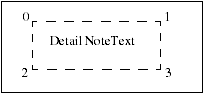
    The method IpfcDetailNoteItem.GetLineEnvelope() determines the screen coordinates of the envelope around the detail note. This envelope is defined by four points. The following figure illustrates how the point order is determined.
    Image
    The ordering of the points is maintained even if the notes are mirrored or are at an angle.
    The method IpfcDetailNoteItem.GetModelReference() returns the model referenced by the parameterized text in a note. The model is referenced based on the line number and the text index where the parameterized text appears.
    Details Notes Operations
    Methods Introduced:
  • IpfcDetailNoteItem.Draw()
  • IpfcDetailNoteItem.Show()
  • IpfcDetailNoteItem.Erase()
  • IpfcDetailNoteItem.Remove()
  • IpfcDetailNoteItem.KeepArrowTypeAsIs()
  • IpfcDetailNoteItem.Modify()
  • The method IpfcDetailNoteItem.Draw() temporarily draws a detail note item, so that it is removed during the next draft regeneration.
    The method IpfcDetailNoteItem.Show() displays the note item, such that it is repainted during the next draft regeneration.
    The method IpfcDetailNoteItem.Erase() undraws a detail note item temporarily, so that it is redrawn during the next draft regeneration.
    The method IpfcDetailNoteItem.Remove() undraws a detail note item permanently, so that it is not redrawn during the next draft regeneration.
    The method IpfcDetailNoteItem.KeepArrowTypeAsIs() allows you to keep arrow type of the leader note as it is, after a note is modified. You must call this method before the method IpfcDetailNoteItem.Modify() is called.
    The method IpfcDetailNoteItem.Modify() modifies the definition of an existing detail note item based on the instructions object that describes the new detail note item.
    Detail Groups
    A detail group in the VB API is represented by the interface IpfcDetailGroupItem. It is a child of the IpfcDetailItem interface .
    The interface IpfcDetailGroupInstructions contains information used to describe a detail group item.
    Instructions
    Method and Properties Introduced:
  • CCpfcDetailGroupInstructions.Create()
  • IpfcDetailGroupInstructions.Name
  • IpfcDetailGroupInstructions.Elements
  • IpfcDetailGroupInstructions.IsDisplayed
  • The method CCpfcDetailGroupInstructions.Create() creates an instruction data object that describes how to construct a detail group for use in pfcDetailItemOwner.CreateDetailItem() and IpfcDetailGroupItem.Modify().
    Note
    Changes to the values of a IpfcDetailGroupInstructions object do not take effect until that instructions object is used to modify the group using IpfcDetailGroupItem.Modify().
    The property IpfcDetailGroupInstructions.Name returns the name of the detail group.
    The property IpfcDetailGroupInstructions.Elements returns the sequence of the detail items(notes, groups and entities) contained in the group.
    The property IpfcDetailGroupInstructions.IsDisplayed returns whether the detail group is displayed in the drawing.
    Detail Groups Information
    Method Introduced:
  • IpfcDetailGroupItem.GetInstructions()
  • The method IpfcDetailGroupItem.GetInstructions() gets a data object that describes how to construct a detail group item. The method returns the data object describing the detail group item.
    Detail Groups Operations
    Methods Introduced:
  • IpfcDetailGroupItem.Draw()
  • IpfcDetailGroupItem.Erase()
  • IpfcDetailGroupItem.Modify()
  • The method IpfcDetailGroupItem.Draw() temporarily draws a detail group item, so that it is removed during the next draft generation.
    The method IpfcDetailGroupItem.Erase() temporarily undraws a detail group item, so that it is redrawn during the next draft generation.
    The method IpfcDetailGroupItem.Modify() changes the definition of a detail group item based on the data object that describes how to construct a detail group item.
    Example: Create New Group of Items
    The sample code in the file pfcDrawingExamples.vb located at <creo_vbapi_loadpoint>/vbapi_examples creates a group from a set of selected detail items.
    Detail Symbols
    Detail Symbol Definitions
    A detail symbol definition in the VB API is represented by the interface IpfcDetailSymbolDefItem. It is a child of the IpfcDetailItem interface .
    The interface IpfcDetailSymbolDefInstructions contains information that describes a symbol definition. It can be used when creating symbol definition entities or while accessing existing symbol definition entities.
    Instructions
    Methods and Properties Introduced:
  • CCpfcDetailSymbolDefInstructions.Create()
  • IpfcDetailSymbolDefInstructions.SymbolHeight
  • IpfcDetailSymbolDefInstructions.HasElbow
  • IpfcDetailSymbolDefInstructions.IsTextAngleFixed
  • IpfcDetailSymbolDefInstructions.ScaledHeight
  • IpfcDetailSymbolDefInstructions.Attachments
  • IpfcDetailSymbolDefInstructions.FullPath
  • IpfcDetailSymbolDefInstructions.Reference
  • The method CCpfcDetailSymbolDefInstructions.Create() creates an instruction data object that describes how to create a symbol definition based on the path and name of the symbol definition. The instructions object is passed to the methods pfcDetailItemOwner.CreateDetailItem() and pfcDetailSymbolDefItem.Modify().
    Note
    Changes to the values of a IpfcDetailSymbolDefInstructions object do not take effect until that instructions object is used to modify the definition using the method IpfcDetailSymbolDefItem.Modify().
    The property IpfcDetailSymbolDefInstructions.SymbolHeight returns the value of the height type for the symbol definition. The symbol definition height options are as follows:
    •  EpfcSYMDEF_FIXED—Symbol height is fixed.
    •  EpfcSYMDEF_VARIABLE—Symbol height is variable.
    •  EpfcSYMDEF_RELATIVE_TO_TEXT—Symbol height is determined relative to the text height.
    The property IpfcDetailSymbolDefInstructions.HasElbow determines whether the symbol definition includes an elbow.
    The property IpfcDetailSymbolDefInstructions.IsTextAngleFixed returns whether the text of the angle is fixed.
    The property IpfcDetailSymbolDefInstructions.ScaledHeight returns the height of the symbol definition in inches.
    The IpfcDetailSymbolDefInstructions.Attachments returns the value of the sequence of the possible instance attachment points for the symbol definition.
    The property IpfcDetailSymbolDefInstructions.FullPath returns the value of the complete path of the symbol definition file.
    The property IpfcDetailSymbolDefInstructions.Reference returns the text reference information for the symbol definition. It returns a null value if the text reference is not used. The text reference identifies the text item used for a symbol definition which has a height type of SYMDEF_TEXT_RELATED.
    Detail Symbol Definitions Information
    Methods Introduced:
  • IpfcDetailSymbolDefItem.ListDetailItems()
  • IpfcDetailSymbolDefItem.GetInstructions()
  • The method IpfcDetailSymbolDefItem.ListDetailItems() lists the detail items in the symbol definition based on the type of the detail item.
    The method IpfcDetailSymbolDefItem.GetInstructions() returns an instruction data object that describes how to construct the symbol definition.
    Detail Symbol Definitions Operations
    Methods Introduced:
  • IpfcDetailSymbolDefItem.CreateDetailItem()
  • IpfcDetailSymbolDefItem.Modify()
  • The method IpfcDetailSymbolDefItem.CreateDetailItem() creates a detail item in the symbol definition based on the instructions data object. The method returns the detail item in the symbol definition.
    The method IpfcDetailSymbolDefItem.Modify() modifies a symbol definition based on the instructions data object that contains information about the modifications to be made to the symbol definition.
    Retrieving Symbol Definitions
    Methods Introduced:
  • IpfcDetailItemOwner.RetrieveSymbolDefItem()
  • From Creo 4.0 F000 onwards, the method IpfcDetailItemOwner.RetrieveSymbolDefinition() has been deprecated. Use the method IpfcDetailItemOwner.RetrieveSymbolDefItem instead.
    Creo Parametric symbols exist in two different areas: the user-defined area and the system symbols area.
    The method IpfcDetailItemOwner.RetrieveSymbolDefItem() retrieves a symbol definition from the user-defined location designated by the configuration option pro_symbol_dir. The symbol definition should have been previously saved to a file using Creo Parametric.
    The method IpfcDetailItemOwner.RetrieveSymbolDefItem() also retrieves a symbol definition from the system directory. The system area contains symbols provided by Creo Parametric with the Detail module (such as the Welding Symbols Library).
    The input parameters of this method are:
    •  FileName—Name of the symbol definition file.
    •  Source—Source of the symbol definition file. The input parameter Source is defined by the enumerated type pfcDetail.DetailSymbolDefItemSource. The valid values which are supported are listed below:
      DTLSYMDEF_SRC_SYSTEM—Specifies the system symbol definition directory.
      DTLSYMDEF_SRC_PATH—Specifies the absolute path to a directory containing the symbol definition.
    •  FilePath—Path to the symbol definition file. It is relative to the path specified by the option pro_symbol_dir in the configuration file. A null value indicates that the function should search the current directory.
    •  Version—Numerical version of the symbol definition file. A null value retrieves the latest version.
    •  UpdateUnconditionally—True if Creo should update existing instances of this symbol definition, or false to quit the operation if the definition exists in the model.
    The method returns the retrieved symbol definition.
    Example : Create Symbol Definition
    The sample code in the file pfcDrawingExamples.vb located at <creo_vbapi_loadpoint>/vbapi_examples creates a symbol definition which contains four line entities forming a box, a note at the middle of the box, and a free attachment.
    Detail Symbol Instances
    A detail symbol instance in the VB API is represented by the interface IpfcDetailSymbolInstItem. It is a child of the IpfcDetailItem interface .
    The interface IpfcDetailSymbolInstInstructions contains information that describes a symbol instance. It can be used when creating symbol instances and while accessing existing groups.
    Instructions
    Methods and Properties Introduced:
  • CCpfcDetailSymbolInstInstructions.Create()
  • IpfcDetailSymbolInstInstructions.IsDisplayed
  • IpfcDetailSymbolInstInstructions.Color
  • IpfcDetailSymbolInstInstructions.SymbolDef
  • IpfcDetailSymbolInstInstructions.AttachOnDefType
  • IpfcDetailSymbolInstInstructions.DefAttachment
  • IpfcDetailSymbolInstInstructions.InstAttachment
  • IpfcDetailSymbolInstInstructions.Angle
  • IpfcDetailSymbolInstInstructions.ScaledHeight
  • IpfcDetailSymbolInstInstructions.TextValues
  • IpfcDetailSymbolInstInstructions.CurrentTransform
  • IpfcDetailSymbolInstInstructions.SetGroups()
  • The method CCpfcDetailSymbolInstInstructions.Create() creates a data object that contains information about the placement of a symbol instance.
    Note
    Changes to the values of a IpfcDetailSymbolInstInstructions object do not take effect until that instructions object is used to modify the instance using IpfcDetailSymbolInstItem.Modify().
    The property IpfcDetailSymbolInstInstructions.IsDisplayed returns a value that specifies whether the instance of the symbol is displayed.
    The property IpfcDetailSymbolInstInstructions.Color returns the color of the detail symbol instance. A null value indicates that the default drawing color is used.
    The property IpfcDetailSymbolInstInstructions.SymbolDef returns the symbol definition used for the instance.
    The property IpfcDetailSymbolInstInstructions.AttachOnDefType returns the attachment type of the instance. The method returns a null value if the attachment represents a free attachment. The attachment options are as follows:
    •  EpfcSYMDEFATTACH_FREE—Attachment on a free point.
    •  EpfcSYMDEFATTACH_LEFT_LEADER—Attachment via a leader on the left side of the symbol.
    •  EpfcSYMDEFATTACH_RIGHT_LEADER— Attachment via a leader on the right side of the symbol.
    •  EpfcSYMDEFATTACH_RADIAL_LEADER—Attachment via a leader at a radial location.
    •  EpfcSYMDEFATTACH_ON_ITEM—Attachment on an item in the symbol definition.
    •  EpfcSYMDEFATTACH_NORMAL_TO_ITEM—Attachment normal to an item in the symbol definition.
    The property IpfcDetailSymbolInstInstructions.DefAttachment returns the value that represents the way in which the instance is attached to the symbol definition.
    The property IpfcDetailSymbolInstInstructions.InstAttachment returns the value of the attachment of the instance that includes location and leader information.
    The property IpfcDetailSymbolInstInstructions.Angle returns the value of the angle at which the instance is placed. The method returns a null value if the value of the angle is 0 degrees.
    The property IpfcDetailSymbolInstInstructions.ScaledHeight returns the height of the symbol instance in the owner drawing or model coordinates. This value is consistent with the height value shown for a symbol instance in the Properties dialog box in the Creo Parametric User Interface.
    Note
    The scaled height obtained using the above property is partially based on the properties of the symbol definition assigned using the property IpfcDetailSymbolInstInstructions.SymbolDef. Changing the symbol definition may change the calculated value for the scaled height.
    The property IpfcDetailSymbolInstInstructions.TextValues returns the sequence of variant text values used while placing the symbol instance.
    The property IpfcDetailSymbolInstInstructions.CurrentTransform returns the coordinate transformation matrix to place the symbol instance.
    The method IpfcDetailSymbolInstInstructions.SetGroups()
    IpfcDetailSymbolGroupOption
    •  EpfcDETAIL_SYMBOL_GROUP_INTERACTIVE—Symbol groups are interactively selected for display. This is the default value in the GRAPHICS mode.
    •  EpfcDETAIL_SYMBOL_GROUP_ALL—All non-exclusive symbol groups are included for display.
    •  EpfcDETAIL_SYMBOL_GROUP_NONE—None of the non-exclusive symbol groups are included for display.
    •  EpfcDETAIL_SYMBOL_GROUP_CUSTOM—Symbol groups specified by the application are displayed.
    Refer to the section Detail Symbol Groups for more information on detail symbol groups.
    Detail Symbol Instances Information
    Method Introduced:
  • IpfcDetailSymbolInstItem.GetInstructions()
  • The method IpfcDetailSymbolInstItem.GetInstructions() returns an instructions data object that describes how to construct a symbol instance. This method takes a ProBoolean argument, GiveParametersAsNames, which determines whether symbolic representations of parameters and drawing properties in the symbol instance should be displayed, or the actual text seen by the user should be displayed.
    Detail Symbol Instances Operations
    Methods Introduced:
  • IpfcDetailSymbolInstItem.Draw()
  • IpfcDetailSymbolInstItem.Erase()
  • IpfcDetailSymbolInstItem.Show()
  • IpfcDetailSymbolInstItem.Remove()
  • IpfcDetailSymbolInstItem.Modify()
  • The method IpfcDetailSymbolInstItem.Draw() draws a symbol instance temporarily to be removed on the next draft regeneration.
    The method IpfcDetailSymbolInstItem.Erase() undraws a symbol instance temporarily from the display to be redrawn on the next draft generation.
    The method IpfcDetailSymbolInstItem.Show() displays a symbol instance to be repainted on the next draft regeneration.
    The method IpfcDetailSymbolInstItem.Remove() deletes a symbol instance permanently.
    The method IpfcDetailSymbolInstItem.Modify() modifies a symbol instance based on the instructions data object that contains information about the modifications to be made to the symbol instance.
    Example: Create a Free Instance of Symbol Definition
    The sample code in the file pfcDrawingExamples.vb located at <creo_vbapi_loadpoint>/vbapi_examples creates a free instance of a symbol definition.
    Example: Create a Free Instance of a Symbol Definition with drawing unit heights, variable text and groups
    The sample code in the file pfcDrawingExamples.vb located at <creo_vbapi_loadpoint>/vbapi_examples creates a free instance of a symbol definition with drawing unit heights, variable text and groups.
    Detail Symbol Groups
    A detail symbol group in the VB API is represented by the interface IpfcDetailSymbolGroup. It is a child of the IpfcObject interface . A detail symbol group is accessible only as a part of the contents of a detail symbol definition or instance.
    The interface IpfcDetailSymbolGroupInstructions contains information that describes a symbol group. It can be used when creating new symbol groups, or while accessing or modifying existing groups.
    Instructions
    Methods and Properties Introduced:
  • CCpfcDetailSymbolGroupInstructions.Create()
  • IpfcDetailSymbolGroupInstructions.Items
  • IpfcDetailSymbolGroupInstructions.Name
  • The method CCpfcDetailSymbolGroupInstructions.Create() creates the IpfcDetailSymbolGroupInstructions data object that stores the name of the symbol group and the list of detail items to be included in the symbol group.
    Note
    Changes to the values of the IpfcDetailSymbolGroupInstructions data object do not take effect until this object is used to modify the instance using the method IpfcDetailSymbolGroup.Modify().
    The property IpfcDetailSymbolGroupInstructions.Items returns the list of detail items included in the symbol group.
    The property IpfcDetailSymbolGroupInstructions.Name returns the name of the symbol group.
    Detail Symbol Group Information
    Methods Introduced:
  • IpfcDetailSymbolGroup.GetInstructions()
  • IpfcDetailSymbolGroup.ParentGroup
  • IpfcDetailSymbolGroup.ParentDefinition
  • IpfcDetailSymbolGroup.ListChildren()
  • IpfcDetailSymbolDefItem.ListSubgroups()
  • IpfcDetailSymbolDefItem.IsSubgroupLevelExclusive()
  • IpfcDetailSymbolDefItem.IsSubgroupLevelExclusive()
  • The method IpfcDetailSymbolGroup.GetInstructions() returns the IpfcDetailSymbolGroupInstructions data object that describes how to construct a symbol group.
    The method IpfcDetailSymbolGroup.ParentGroup returns the parent symbol group to which a given symbol group belongs.
    The method IpfcDetailSymbolGroup.ParentDefinition returns the symbol definition of a given symbol group.
    The method IpfcDetailSymbolGroup.ListChildren() lists the subgroups of a given symbol group.
    The method IpfcDetailSymbolDefItem.ListSubgroups() lists the subgroups of a given symbol group stored in the symbol definition at the indicated level.
    The method IpfcDetailSymbolDefItem.IsSubgroupLevelExclusive() identifies if the subgroups of a given symbol group stored in the symbol definition at the indicated level are exclusive or independent. If groups are exclusive, only one of the groups at this level can be active in the model at any time. If groups are independent, any number of groups can be active.
    The method IpfcDetailSymbolDefItem.ListSubgroups() lists the symbol groups included in a symbol instance. The IpfcSymbolGroupFilter argument determines the types of symbol groups that can be listed. It takes the following values:
    •  EpfcDTLSYMINST_ALL_GROUPS—Retrieves all groups in the definition of the symbol instance.
    •  EpfcDTLSYMINST_ACTIVE_GROUPS—Retrieves only those groups that are actively shown in the symbol instance.
    •  EpfcDTLSYMINST_INACTIVE_GROUPS—Retrieves only those groups that are not shown in the symbol instance.
    Detail Symbol Group Operations
    Methods Introduced:
  • IpfcDetailSymbolGroup.Delete()
  • IpfcDetailSymbolGroup.Modify()
  • IpfcDetailSymbolDefItem.CreateSubgroup()
  • IpfcDetailSymbolDefItem.SetSubgroupLevelExclusive()
  • IpfcDetailSymbolDefItem.SetSubgroupLevelIndependent()
  • The method IpfcDetailSymbolGroup.Delete() deletes the specified symbol group from the symbol definition. This method does not delete the entities contained in the group.
    The method IpfcDetailSymbolGroup.Modify() modifies the specified symbol group based on the IpfcDetailSymbolGroupInstructions data object that contains information about the modifications that can be made to the symbol group.
    The method IpfcDetailSymbolDefItem.CreateSubgroup()creates a new subgroup in the symbol definition at the indicated level below the parent group.
    The method IpfcDetailSymbolDefItem.SetSubgroupLevelExclusive() makes the subgroups of a symbol group exclusive at the indicated level in the symbol definition.
    Note
    After you set the subgroups of a symbol group as exclusive, only one of the groups at the indicated level can be active in the model at any time.
    The method IpfcDetailSymbolDefItem.SetSubgroupLevelIndependent() makes the subgroups of a symbol group independent at the indicated level in the symbol definition.
    Note
    After you set the subgroups of a symbol group as independent, any number of groups at the indicated level can be active in the model at any time.
    Detail Attachments
    A detail attachment in VB API is represented by the interfaceIpfcAttachment. It is used for the following tasks:
    •  The way in which a drawing note or a symbol instance is placed in a drawing.
    •  The way in which a leader on a drawing note or symbol instance is attached.
    Method Introduced:
  • IpfcAttachment.GetType()
  • The method IpfcAttachment.GetType() returns the IpfcAttachmentTypeobject containing the types of detail attachments. The detail attachment types are as follows:
    •  EpfcATTACH_FREE—The attachment is at a free point possibly with respect to a given drawing view.
    •  EpfcATTACH_PARAMETRIC—The attachment is to a point on a surface or an edge of a solid.
    •  EpfcATTACH_OFFSET—The attachment is offset to another drawing view, to a model item, or to a 3D model annotation.
    •  EpfcATTACH_TYPE_UNSUPPORTED—The attachment is to an item that cannot be represented in PFC at the current time. However, you can still retrieve the location of the attachment.
    Free Attachment
    The EpfcATTACH_FREE detail attachment type is represented by the interface IpfcFreeAttachment. It is a child of the IpfcAttachmentinterface .
    Properties Introduced:
  • IpfcFreeAttachment.AttachmentPoint
  • IpfcFreeAttachment.View
  • The property IpfcFreeAttachment.AttachmentPoint returns the attachment point. This location is in screen coordinates for drawing items, symbol instances and surface finishes on flat-to-screen annotation planes, and in model coordinates for symbols and surface finishes on 3D model annotation planes.
    The method IpfcFreeAttachment.View returns the drawing view to which the attachment is related. The attachment point is relative to the drawing view, that is the attachment point moves when the drawing view is moved. This method returns a NULL value, if the detail attachment is not related to a drawing view, but is placed at the specified location in the drawing sheet, or if the attachment is offset to a model item or to a 3D model annotation.
    Parametric Attachment
    The EpfcATTACH_PARAMETRIC detail attachment type is represented by the interface IpfcParametricAttachment. It is a child of the IpfcAttachmentinterface .
    Property Introduced:
  • IpfcParametricAttachment.AttachedGeometry
  • The property IpfcParametricAttachment.AttachedGeometry returns the IpfcSelection object representing the item to which the detail attachment is attached. This includes the drawing view in which the attachment is made.
    Offset Attachment
    The EpfcATTACH_OFFSET detail attachment type is represented by the interface IpfcOffsetAttachment. It is a child of the IpfcAttachmentinterface .
    Properties Introduced:
  • IpfcOffsetAttachment.AttachedGeometry
  • IpfcOffsetAttachment.AttachmentPoint
  • The property IpfcOffsetAttachment.AttachedGeometry returns the IpfcSelection object representing the item to which the detail attachment is attached. This includes the drawing view where the attachment is made, if the offset reference is in a model.
    The property IpfcOffsetAttachment.AttachmentPoint returns the attachment point. This location is in screen coordinates for drawing items, symbol instances and surface finishes on flat-to-screen annotation planes, and in model coordinates for symbols and surface finishes on 3D model annotation planes. The distance from the attachment point to the location of the item to which the detail attachment is attached is saved as the offset distance.
    Unsupported Attachment
    The EpfcATTACH_TYPE_UNSUPPORTED detail attachment type is represented by the interfaceIpfcUnsupportedAttachment. It is a child of the IpfcAttachment interface .
    Property Introduced:
  • IpfcUnsupportedAttachment.AttachmentPoint
  • The property IpfcUnsupportedAttachment.AttachmentPoint returns the attachment point. This location is in screen coordinates for drawing items, symbol instances and surface finishes on flat-to-screen annotation planes, and in model coordinates for symbols and surface finishes on 3D model annotation planes.