Ribbon Tabs, Groups, and Menu Items
This section describes the VB API support for the Ribbon User Interface (UI). It also describes the impact of the ribbon user interface on legacy VB API applications and the procedure to place the commands, buttons, and menu items created by the legacy applications in the Creo Parametric ribbon user interface. Refer to the Creo Parametric Help for more information on the ribbon user interface and the procedure to customize the ribbon.
Creating Ribbon Tabs, Groups, and Menu Items
Customizations to the ribbon user interface using the VB API applications are supported through the Customize Ribbon tab in the Creo Parametric Creo prametric Options dialog box. You can specify the user interface layout for a VB API application and save the layout definition in a ribbon definition file, toolkitribbonui.rbn. Set the configuration option tk_enable_ribbon_custom_save to yes before customizing the ribbon user interface using the the VB API application. When you run Creo Parametric, the toolkitribbonui.rbn file is loaded along with the VB API application and the commands created by the VB API application appear in the ribbon user interface. Refer to the section About the Ribbon Definition File for more information on the toolkitribbonui.rbn file.
You can customize the ribbon user interface only for a particular mode in Creo Parametric. For example, if you customize the ribbon user interface and save it to the toolkitribbonui.rbn file in the Part mode, then on loading Creo Parametric the customized user interface will be visible only in the Part mode. To view a particular tab or group in all the modes, you must customize the ribbon user interface and save the toolkitribbonui.rbn file in each mode. Refer to the Creo Parametric Fundamentals Help for more information on customizing the ribbon.
Note
You can add a new group to an existing tab or create a new tab using the Customize Ribbon tab in the Creo Parametric Options dialog box. You will not be able to modify the tabs or groups that are defined by Creo Parametric.
Workflow to Add Menu Items to the Ribbon User Interface
Note
The instructions explained below are applicable only if the application is implemented in full asynchronous mode. This is because applications in simple asynchronous mode cannot handle requests, that is, command callbacks, from Creo Parametric. Refer to the chapter on Asynchronous Mode, for more information.
Set the configuration option tk_enable_ribbon_custom_save to yes before customizing the ribbon user interface. The steps to add commands to the Creo Parametric ribbon user interface are as follows:
1. Create a VB API application with complete command definition, which includes specifying command label, help text, large icon name, and small icon name. Designate the command using IpfcUICommand.Designate().
2. Start the VB API application and ensure that it has started or connected to Creo Parametric. The commands created by the VB API application will be loaded in Creo Parametric.
3. Click File  Options. The Creo Parametric Options dialog box opens.
4. Click Customize Ribbon.
5. In the Customize the Ribbon list, select a tab and create a new group in it or create a new tab and a group in it.
6. In the Choose commands from list, select TOOLKIT Commands. The commands created by the VB API application are displayed.
7. Click Add to add the commands to the new tab or group.
8. Click Import/Export  Save the Auxilliary Application User Interface. The changes are saved to the toolkitribbonui.rbn file. The toolkitribbonui.rbn file is saved in the text folder specified in the VB API application registry file. For more information refer to the section on About the Ribbon Definition File.
Note
The Save the Auxilliary Application User Interface button is enabled only if you set the configuration option tk_enable_ribbon_custom_save to yes.
9. Click Apply. The custom settings are saved to the toolkitribbonui.rbn file.
10. Reload the VB API application or restart Creo Parametric. The toolkitribbonui.rbn file will be loaded along with the VB API application.
If translated messages are available for the newly added tabs or groups, then Creo Parametric displays the translated strings by searching for the same string from the list of string based messages that are loaded. For more information refer to the section on Localizing the Ribbon User Interface Created by the VB API Applications.
About the Ribbon Definition File
A ribbon definition file is a file that is created through the Customize Ribbon interface in Creo Parametric. This file defines the containers, that is, Tabs, Group, or Cascade menus that are created by a particular VB API application. It contains information on whether to show an icon or label. It also contains the size of the icon to be used, that is, a large icon (32X32) or a small icon (16x16).
The ribbon user interface displays the commands referenced in the ribbon definition file only if the commands are loaded and are visible in that particular Creo Parametric mode. If translated messages are available for the newly added tabs or groups, then Creo Parametric displays the translated strings by searching for the same string from the list of string based messages that are loaded. For more information refer to the section on Localizing the Ribbon User Interface Created by the VB API Applications.
Set the configuration option tk_enable_ribbon_custom_save to yes before customizing the ribbon user interface. To save the ribbon user interface layout definition to the toolkitribbonui.rbn file:
1. Click File  Options. The Creo Parametric Options dialog box opens.
2. Click Customize Ribbon.
3. In the Customize the Ribbon list, select a tab and create a new group in it or create a new tab and a group in it.
4. In the Choose commands from list, select TOOLKIT Commands. The commands created by the VB API application are displayed.
5. Click Add to add the commands to the new tab or group.
6. Click Import/Export  Save the Auxilliary Application User Interface. The modified layout is saved to the toolkitribbonui.rbn file located in the text folder within the VB API application directory, that is, <application_dir>/text
Note
The Save the Auxilliary Application User Interface button is enabled only if you set the configuration option tk_enable_ribbon_custom_save to yes.
7. Click OK.
Note
You cannot edit the toolkitribbonui.rbn file manually.
To Specify the Path for the Ribbon Definition File
You can rename the toolkitribbonui.rbn to another filename with the .rbn extension. To enable the VB API application to read the ribbon definition file having a name other than toolkitribbonui.rbn, it must be available at the location <application_dir>/text/ribbon. The method introduced in this section enables you to load the ribbon definition file from within a VB API application.
method Introduced:
  • IpfcSession.RibbonDefinitionfileLoad
  • The method IpfcSession.RibbonDefinitionfileLoad() loads a specified ribbon definition file from a default path into the Creo Parametric application. The input argument is as follows:
    •  file_name - Specify the name of the ribbon definition file including its extension. The default search path for this file is:
      The working directory from where Creo Parametric is loaded.
      <application_text_dir>/ribbon
      <application_text_dir>/language/ribbon
    Note
      The location of the application text directory is specified in the VB API registry file.
      A VB API application can load a ribbon definition file only once. After the application has loaded the ribbon, calls made to the method IpfcSession.RibbonDefinitionfileLoad() to load other ribbon definition files are ignored.
    Loading Multiple Applications Using the Ribbon Definition File
    Creo Parametric supports loading of multiple .rbn files in the same session. You can develop multiple VB API applications that share the same tabs or groups and each application will have its own ribbon definition file. As each application is loaded, its .rbn file will be read and applied. When an application is unloaded, the containers and command created by its .rbn file will be removed.
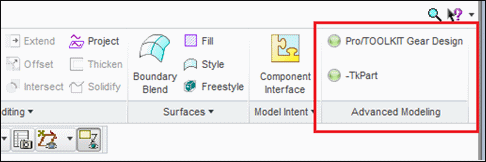
    For example, consider two VB API applications, namely, pt_geardesign and pt_examples that add commands to the same group on a tab on the Ribbon user interface. The application pt_geardesign adds a command Pro/TOOLKIT Gear Design to the Advanced Modeling group on the Modeling tab and the application pt_examples adds a command TKPart to the Advanced Modeling group on the Model tab. The ribbon definition file for each application will contain an instruction to create the Advanced Modeling group and if both the ribbon files are loaded, the group will be created only once and the two ribbon customizations will be merged into the same group.
    That is, if both the applications are running in the same Creo Parametric session, then the commands, Pro/TOOLKIT Gear Design and TKPart will be available under the Advanced Modeling group on the Model tab.
    Note
    The order in which the commands will be displayed within the group will depend on the order of loading of the .rbn file for each application.
    The following image displays commands added by two VB API applications to the same group.
    Image
    To save the customization when multiple applications are loaded:
    1. Click File  Options. The Creo Parametric Options dialog box opens.
    2. Click Customize Ribbon.
    3. In the Customize the Ribbon list, select a tab and create a new group in it or create a new tab and a group in it.
    4. In the Choose commands from list, select TOOLKIT Commands. The commands created by the VB API application are displayed.
    5. Click Add to add the commands to the new tab or group.
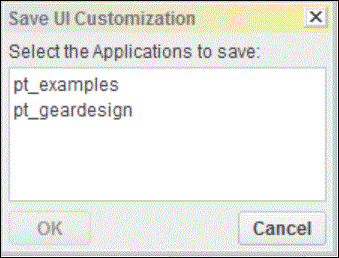
    6. Click Import/Export  Save the Auxilliary Application User Interface. The Save UI Customization dialog box opens.
    7. Select a VB API application and Click Save. The modified layout is saved to the .rbn file of the specified VB API application.
    The Save UI Customization dialog box is shown in the following image:
    Image
    Localizing the Ribbon User Interface Created by the VB API Applications
    The labels for the custom tabs, groups, and cascade menus belonging to the VB API application can be translated in the languages supported by Creo Parametric. To display localized labels, specify the translated labels in the ribbonui.txt file and save this file at the location <application_text_dir>/<language>. For example, the text file for German locale must be saved at the location <application_text_dir>/german/ribbonui.txt.
    Create a file containing translations for each of the languages in which the VB API application is localized. The Localized translation files must use the UTF-8 encoding with BOM character for the translated text to be displayed correctly in the user interface.
    The format of the ribbonui.txt file is as shown below. Specify the following lines for each label entry in the file:
    1. A hash sign (#) followed by the label, as specified in the ribbon definition file.
    2. The label as specified in the ribbon definition file and as displayed in the ribbon user interface.
    3. The translated label.
    4. Add an empty line at the end of each label entry in the file.
    For example, if the Creo Parametric application creates a tab with the name TK_TAB having a group with the name TK_GROUP, then the translated file will contain the following:
    #TK_TAB
    TK_TAB
    <translation for TK_TAB>
    <Empty_line>
    #TK_GROUP
    TK_GROUP
    <translation for TK_GROUP>
    <Empty_line>
    
    Support for Legacy the VB API Applications
    The user interface for Creo Parametric 1.0 has been restructured to a ribbon user interface. This may affect the behavior of existing the VB API applications that were designed to add commands to specific Pro/ENGINEER menus or toolbars. These menus or toolbars or both have been redesigned in Creo Parametric 1.0. The commands added by the the VB API applications appear on the Creo Parametric ribbon in the Home tab under the Pro/TK group. When you open a model, the Pro/TK group is on the Tools tab.
    You can also arrange the commands added by the the VB API applications under a new tab or an existing tab by customizing the ribbon using the Customize Ribbon tab in the Creo Parametric Options dialog box. For a list of all the commands added by the VB API applications, follow this procedure:
    1. Click File  Options. The Creo Parametric Options dialog box opens.
    2. Click Customize Ribbon.
    3. In the Choose commands from list, select TOOLKIT Commands. All the commands added by legacy applications are listed.
    Note
    Commands that have not been designated will not have an icon or will have a generic icon.
    Refer to the Creo Parametric Help for more information on customizing the Ribbon.
    Migration of Legacy VB API Applications
    To migrate existing the VB API applications to the Creo Parametric Ribbon user interface without compiling the source code:
    1. Load the the VB API applications in Creo Parametric so that the commands created in these applications are available in the Customize Ribbon user interface.
    2. Modify the ribbon user interface layout and save the changes to the toolkitribbonui.rbn.
    3. Copy the toolkitribbonui.rbn to the location <application_text_dir>/ribbon.
    4. Reload the VB API application or restart Creo Parametric. The .rbn file will be loaded along with the VB API application and the commands will be visible in the ribbon user interface if its accessibility will be visible.